Tag: python
Memlabs Memory Forensics Challenges – Lab 3 Write-up

Memlabs is a set of six CTF-style memory forensics challenges released in January 2020 by @_abhiramkumar and Team bi0s. This write-up covers Lab 3 – The Evil’s Den. You can find the rest of my Memlabs write-ups here.

Before starting with the analysis I calculated the MD5 and SHA1 hashes of the memory dump
MD5: ce4e7adc4efbf719888d2c87256d1da3
SHA1: b70966fa50a5c5a9dc00c26c33a9096aee20f624
And determined the correct profile for Volatility:
vol.py -f MemoryDump_Lab3.raw imageinfo
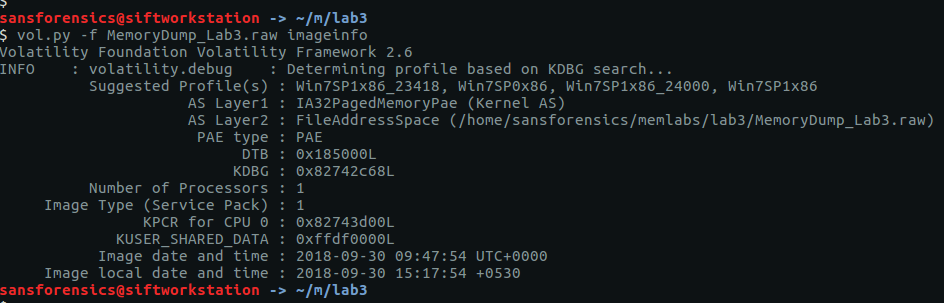
The imageinfo plugin suggests a few profiles; I used Win7SP1x86_23418 to complete the analysis. To begin with, let’s check the running processes with pstree:
vol.py -f MemoryDump_Lab3.raw --profile=Win7SP1x86_23418 pstree

There are two notepad.exe processes running (Pid: 3736 & 3432) but nothing else that immediately jumps out. Using the cmdlines plugin we may be able to see which files were opened.
vol.py -f MemoryDump_Lab3.raw --profile=Win7SP1x86_23418 cmdline -p 3736,3432

That’s a bit more interesting now! Notepad was used to open two files – evilscript.py and vip.txt – let’s try to extract them:
vol.py -f MemoryDump_Lab3.raw --profile=Win7SP1x86_23418 filescan > filescan.txt
grep -E '\\Desktop\\evilscript.py|\\Desktop\\vip.txt' filescan.txt
vol.py -f MemoryDump_Lab3.raw --profile=Win7SP1x86_23418 dumpfiles -Q 0x000000003de1b5f0 -D . -n
vol.py -f MemoryDump_Lab3.raw --profile=Win7SP1x86_23418 dumpfiles -Q 0x000000003e727e50 -D . -n

I used the filescan plugin to list all of the file objects (and their offsets) within the memory image, and redirected the output to a file. Using grep we get the offsets for the files (and also notice that evilscript.py is actually evilscript.py.py), then the dumpfiles plugin will extract the files to disk for analysis.
evilscript.py
import sys
import string

def xor(s):
  a = ''.join(chr(ord(i)^3) for i in s)
  return a

def encoder(x):
  return x.encode("base64")

if __name__ == "__main__":
  f = open("C:\\Users\\hello\\Desktop\\vip.txt", "w")
  arr = sys.argv[1]
  arr = encoder(xor(arr))
  f.write(arr)
  f.close()
vip.txt
am1gd2V4M20wXGs3b2U=
So, we have a Python script that works as follows:
- Take a string as a command-line argument
- Break that string down to its individual characters, and XOR each character with 3
- Encode the XOR’d string as Base64
- Write the Base64 encoded string to the file vip.txt
We could write another Python script to reverse these steps, but CyberChef is much easier!
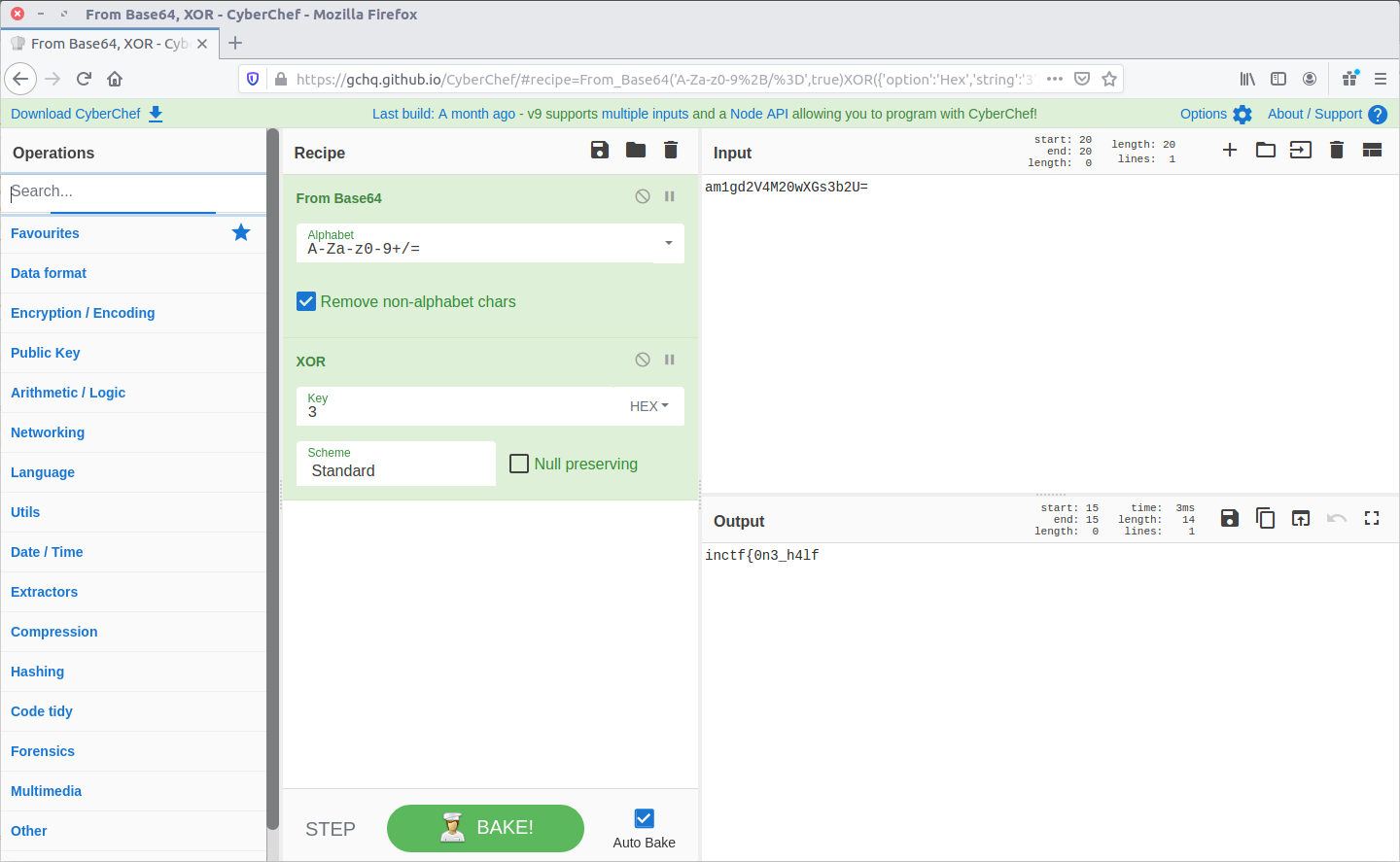
Reversing the steps from evilscript.py, CyberChef spits out the first part of our flag:
inctf{0n3_h4lf
Now we have the first part of the flag, but we still need to find the second. None of the other running processes look particularly interesting, but the challenge description specifically mentions that steghide is required.
Steghide is a steganography program that is able to hide data in various kinds of image and audio files.

Using grep and my saved filescan output I filtered for common image file extensions, and spotted the following after searching for JPEG files:
grep -E '.jpg$|.jpeg

After extracting suspision1.jpeg:

We can feed it into steghide to check for any hidden data. Presumably the first part of the flag is the password…
steghide extract -sf suspision1.jpeg
cat secret\ text

And there we go, the second part of our flag.
_1s_n0t_3n0ugh}
Put them together, and we have completed the challenge!
inctf{0n3_h4lf_1s_n0t_3n0ugh}
Making Sense of 10010 OnionScan Results
A few months ago, Sarah Jamie Lewis released the wonderful OnionScan; a tool for enumerating (and resolving) potential security issues arising from poorly configured Tor Hidden Services. It’s kind of a big deal for people who are interested in that sort of thing.
As cool as OnionScan is, scanning Hidden Services one at a time tends to become rather tedious. Fortunately, Justin Seitz wrote up a nice tutorial on automating OnionScan through a Python wrapper, and being one of those people who are interested in that sort of thing, I set it all up on a dedicated server and left it to run for a few days.
Using Justin’s initial list of 8592 Hidden Services as a starting point, I ended up with 10010 completed scans (which was good) and 10010 distinct JSON files containing the results (which was not so good). “There’s bound to be something interesting in there”, I thought. I could get a rough idea of the state of things by grepping the results files for JSON entries, and even tried throwing EyeWitness at the web and VNC services, but still didn’t really get anywhere. What I really needed was some kind of database.
Introducing onionscan2db…
OnionScan can write its results out to machine-readable JSON files, so parsing them is fairly straightforward. I used Python for no other reason than I like it, and SQLite3 because it’s simple and Python supports it without the need for any additional modules.
The code is probably best described as “functional”. It’s not particularly pretty and there’s definitely room for speeding up the database writes, but it’ll take a take more than 10000 JSON formatted OnionScan results and build an SQLite database that can then be used to do something useful.

The tool is available from GitHub and can be run from the following command
python onionscan2db -d <onionscan-results-directory> -o <output-database>
I’ll try to keep it updated in line with OnionScan, but the code is relatively modular and it shouldn’t be too difficult for anyone else to improve the database structure and import functions as necessary.
 Cyber Poking