Magnet Weekly CTF – Week 4 – Animals That Never Forget

Magnet Forensics have announced a weekly CTF running from October 2020. A new challenge will be released each week on Monday, and the first few are based on an Android filesystem dump. You can find my other Magnet Weekly CTF write-ups here.

MD5: 3bb6abb3bf6d09e3e65d20efc7ec23b1
SHA1: 10cc6d43edae77e7a85b77b46a294fc8a05e731d

The Week 3 challenge really increased the difficulty, involving a bit of file carving to determine the location a photograph was captured. This week though I mostly relied on luck. And grep.

Animals That Never Forget (25 points)

Chester likes to be organized with his busy schedule. Global Unique Identifiers change often, just like his schedule but sometimes Chester enjoys phishing. What was the original GUID for his phishing expedition?

I really had no idea where to start with this one. Calendar data? ALEAPP says no. I decided to simply extract the evidence TAR file and grep through the dump for phish saving the output for later with tee.

grep -r -i 'phish' MUS_Android/data/ | tee grep_phish.out

Not a bad start. We have a lot of matches in binary files so let’s exclude those from the output and see what’s left.

cat grep_phish.out | grep -v '^Binary file ' | grep -i 'phish'
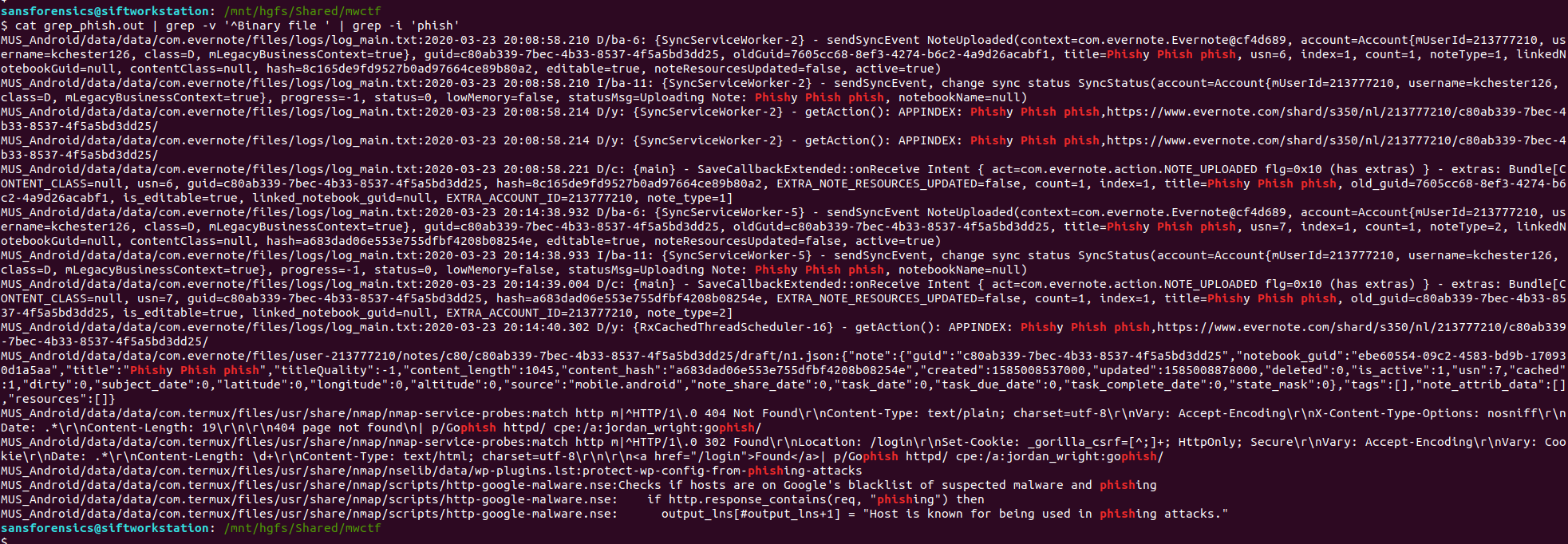
Better! We have a few matches in a log belonging to the Evernote application, and we might even have our answer already!

oldGuid=7605cc68-8ef3-4274-b6c2-4a9d26acabf1

As with Week 3, we only have three attempts to answer this so let’s dig into the log file and see what else we can find.

grep 'oldGuid=' MUS_Android/data/data/com.evernote/files/logs/log_main.txt

The oldGuid key appears four times, along with timestamps; the question asks for the original GUID, presumably the earliest one in the file. We can use grep again to show only the lines relating to our phishing note.

grep 'oldGuid=' MUS_Android/data/data/com.evernote/files/logs/log_main.txt | grep 'title=Phishy Phish phish'

The first hit is the earlier of the two so things are looking good. The screenshot below highlights the oldGuid value.

I think that’s probably enough to verify that we at least have a reasonable answer before burning one of the three attempts. Submit the oldGuid value and we have successfully completed the Week 4 challenge!

Flag

7605cc68-8ef3-4274-b6c2-4a9d26acabf1
Magnet Weekly CTF – Week 3 – Cargo Hold

Magnet Forensics have announced a weekly CTF running from October 2020. A new challenge will be released each week on Monday, and the first few are based on an Android filesystem dump. You can find my other Magnet Weekly CTF write-ups here.

MD5: 3bb6abb3bf6d09e3e65d20efc7ec23b1
SHA1: 10cc6d43edae77e7a85b77b46a294fc8a05e731d

The Week 1 and Week 2 challenges didn’t require too much in terms of analysis – some UNIX file knowledge, and some output parsed by ALEAPP – Week 3 really stepped up the difficulty!

Cargo Hold (40 points)

Which exit did the device user pass by that could have been taken for Cargo?

Max of 3 attempts

Ok, so we are looking for location data of some kind and something relating to cargo. I found some references to airport (and bus) WiFi in the ALEAPP Wi-Fi Profiles report but ALEAPP didn’t give me anything specifically relating to locations so I moved on from that.

In the video announcing the Week 3 question, Jessica Hyde specifically called-out a presentation she gave with Christopher Vance comparing similar artefacts on Android and iOS devices hinting (quite strongly) that it might be helpful. The location data provided by Google Takeout sounds exactly what we need here, but we don’t have Google Takeout data, so on to the next idea.

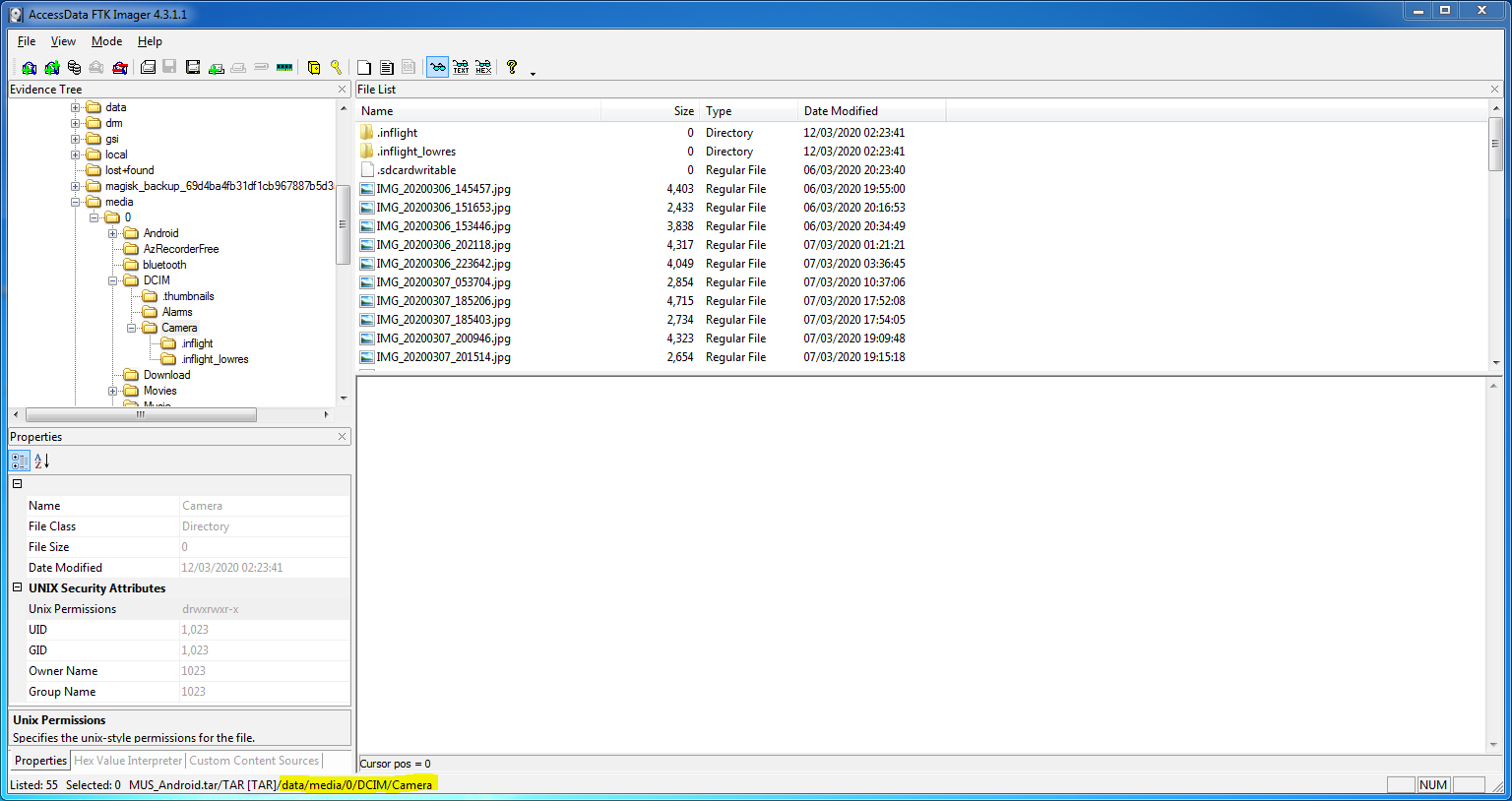
The next thing to stand out was the device media store – the photos and videos captured by the device camera – which can (but don’t always) contain location data in their EXIF metadata. I started with the default camera storage directory…

/data/media/0/DCIM/Camera

…and extracted a total of 53 images and videos using FTK Imager.

Switching to my SIFT virtual machine, based on the coordinates in the EXIF there were some nice photos taken in Norway, and a few around New York. There was nothing obviously related to cargo, but one photo showed a truck on what seems to be a US highway, with part of a signpost in the background. Trucks carry cargo, signposts point to exits. Curious.

MVIMG_20200305_145544.jpg

The EXIF data for this photo contains GPS data:

GPS Position: 42 deg 42' 39.97" N, 73 deg 49' 26.94" W

Massaging that to satisfy Google Maps, we can see that this photo was taken on Highway 87 north of Albany, New York.

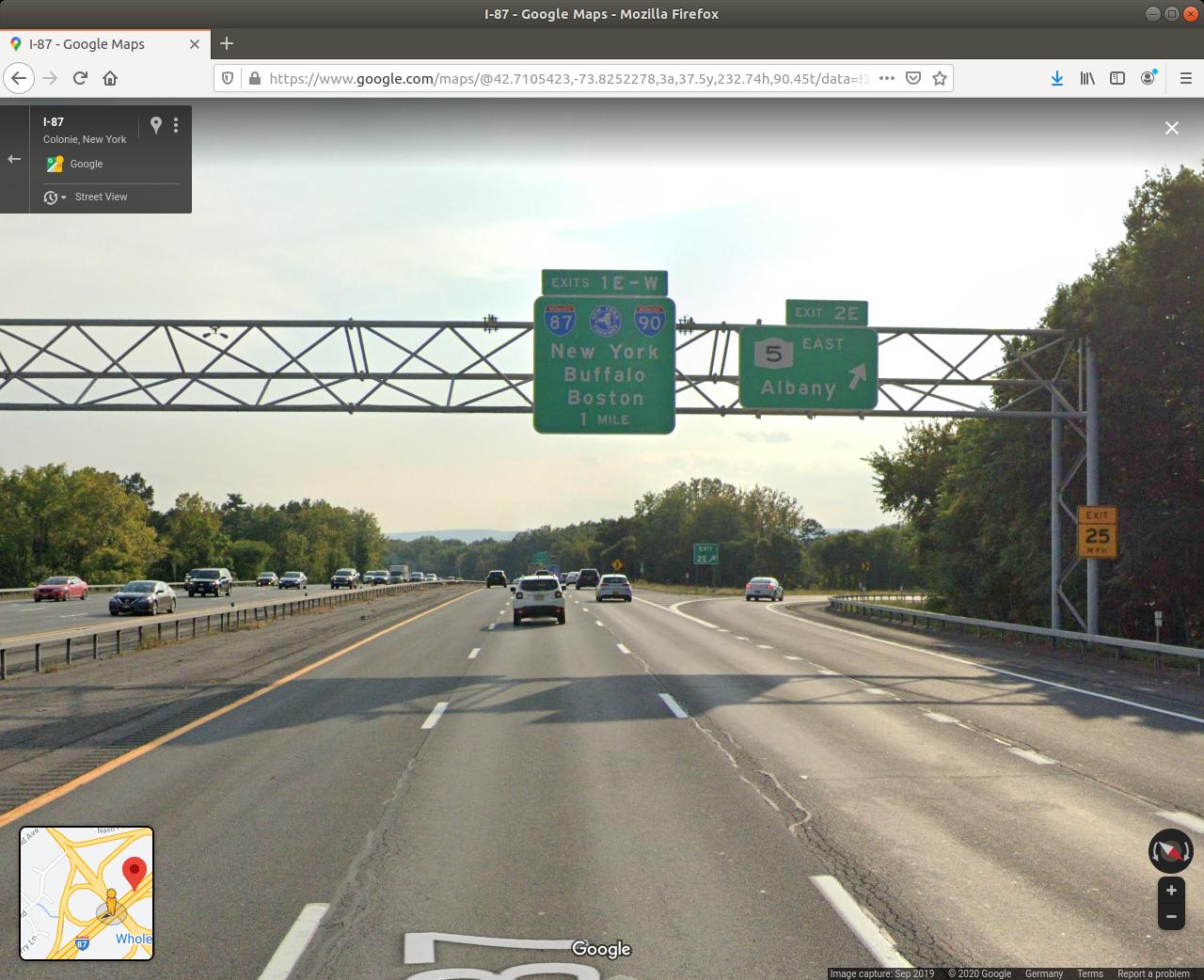
Dropping to Street View looks promising.

There we go! We have a photo of a cargo truck passing exit 2E. Week 3 done…

…or not.

One attempt down, two attempts left. Let’s think again.

The next artefact examined in the iOS/Android comparison presentation was Android Motion Photos. These are equivalent to iOS Live Photos and, in addition to taking a photo, records a video of roughly 1.5 seconds on either side of the photo capture.

Taking a closer look at the name of the truck photo, I noticed it is not IMG… but rather MVIMG… so we are indeed dealing with Motion Photos. This is the exact scenario Jessica Hyde sets out. We may not be able to see location details in the still image, but the video might show us something interesting. So how do we get to the video?

I found a great blog post outlining how Motion Photo files are structured, and put together a quick Bash script to extract the videos from our 8 Motion Photo files:

#!/bin/bash

INPUT_FILENAME="$1"
FILESIZE=$(stat -c%s "$INPUT_FILENAME")

MICRO_VIDEO_OFFSET=$(exiftool -MicroVideoOffset -s -s -s $INPUT_FILENAME)
OUTPUT_FILENAME=${INPUT_FILENAME%.*}

dd if="$INPUT_FILENAME" of="$OUTPUT_FILENAME.mp4" bs=$(($FILESIZE-$MICRO_VIDEO_OFFSET)) skip="1"

Essentially, we use exiftools to determine the Micro Video Offset value and subtract that from the filesize to find the start of the video data, then use the dd utility to skip the photo and write the video data to a new file. Running the script over each of the 8 Motion Photo file results in 8 short videos showing the second or so before and after each photo was captured.

I watched each video frame-by-frame using VLC and soon found what I was looking for in MVIMG_20200307_130326.jpg

MVIMG_20200307_130326.jpg

This photo was taken on the road approaching Oslo Airport, and moving through the embedded video frame-by-frame we can see a road sign directing cargo traffic via exit E (or maybe F) 16.

I could have used Google Maps and Streetview as before to confirm the answer, but I had two attempts left so tried E16 first, which was accepted. Week 3 Done!

Flag

E16

Magnet Weekly CTF – Week 2 – PIP Install

Magnet Forensics have announced a weekly CTF running from October 2020. A new challenge will be released each week on Monday, and the first few are based on an Android filesystem dump. You can find my other Magnet Weekly CTF write-ups here.

MD5: 3bb6abb3bf6d09e3e65d20efc7ec23b1
SHA1: 10cc6d43edae77e7a85b77b46a294fc8a05e731d

Week 1 was pretty straightforward. On to Week 2!

PIP Install (30 points)

What domain was most recently viewed via an app that has picture-in-picture capability?

In the last challenge I didn’t need to do any analysis or parsing of the data, simply read the timestamp of a particular file using FTK Imager. This time I needed to dig a little deeper and used Alexis Brignoni’s ALEAPP to parse the Android filesystem dump.

I have previously used iLEAPP to perform analysis of Apple iOS dumps; ALEAPP – the Android Logs Events And Protobuf Parser – works in much the same way, but for Android data. ALEAPP can process the dump directly from the TAR file. I simply started the GUI, set the input and output, and clicked Process.

A few seconds later I was presented with a nice HTML report of the analysis.

Given that the question asks about a domain being accessed, I guessed that the Chrome history would be a good place to start. I also found an article containing a list of Android applications which support the picture-in-picture featureChrome is listed. Another good sign.

Navigating to the Chrome History report and sorting by the most recent entry, we find the answer to the Week 2 question.

Flag

malliesae.com

Magnet Weekly CTF – Week 1 – Mapping the Digits

Magnet Forensics have announced a weekly CTF running from October 2020. A new challenge will be released each week on Monday, and the first few are based on an Android filesystem dump.

MD5: 3bb6abb3bf6d09e3e65d20efc7ec23b1
SHA1: 10cc6d43edae77e7a85b77b46a294fc8a05e731d

Let’s go!

Mapping the Digits (20 points)

What time was the file that maps names to IP’s recently accessed?

(Please answer in this format in UTC: mm/dd/yyyy HH:MM:SS)

A pretty simple one to start with. On Linux-based systems (like Android) hostnames are mapped to IP addresses in the /etc/hosts file; find that file in the TAR archive and check the timestamp.

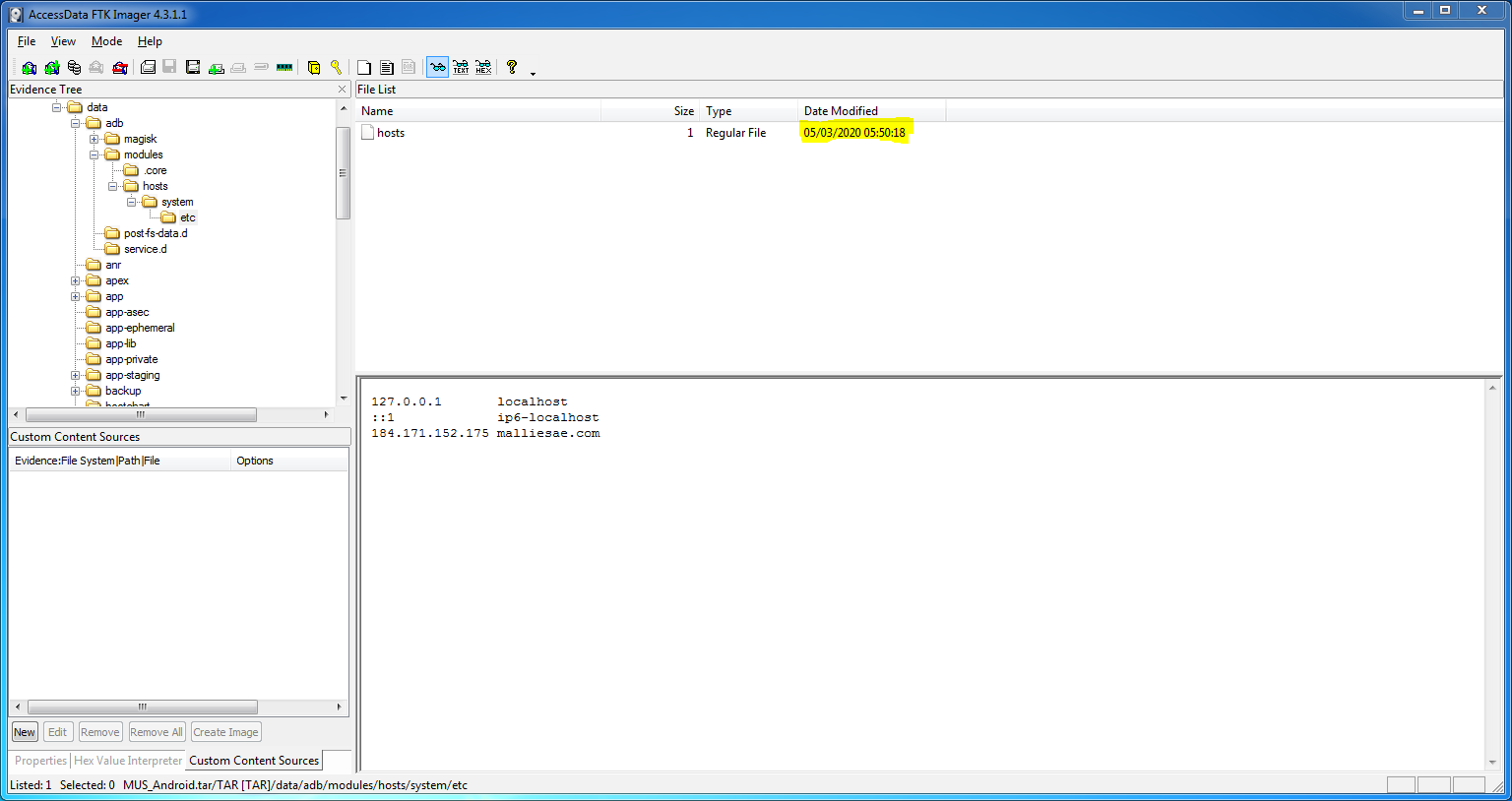
I opened the TAR archive up using FTK Imager, and navigated to the directory containing the hosts file:

/data/adb/modules/hosts/system/etc

There is only one timestamp, but it is worth noting that I have FTK Imager set to display dates in the common European format (day/month/year):

05/03/2020 05:50:18

So swap the day and month values to match the US format required by the question, and we have our first answer.

Flag

03/05/2020 05:50:18

As an aside, confusion around date and timestamps is exactly why we have ISO 8601.